Virtualising PCs using Virtualbox to make system admin easier and use less hardware

IT things, skip down a bit if not your thing 🙂

At work I have been using Virtualbox to manage virtual machines.   As an open source replacement for VMware or Microsoft’s VirtualPC I like it, its got the backing of Sun Microsystems (now owned by Oracle)  There are regular updates and active forums for support.   When I first heard of it from a colleague 3 years ago, you can literally throw almost any operating system at it, I used one of the first betas of Windows 7, various Linux distros, and things like Android, the fast becoming popular phone operating system, and all of these worked first time with very little issues.

In a nut shell, it makes a PC into multiple independent computers to run several systems at once, meaning less physical hardware to run servers, test PCs and other things.   The host (physical lump of metal) machine can be Windows, Mac or Linux.

This saves our organisation money as we have less actual hardware, patches and updates are easier manage and less power consumption and disk space used.

Each host that controls virtual machines has folders on the root of a drive as follows, with shortcuts onto the desktop:-

I wrote some documentation what I have done for work, this is not exhaustive, nor have I read much in the way of best practices for virtualisation.  But it is what has worked well for me.   At the moment I have a server which uses macros with Microsoft Excel and Outlook to process helpdesk app for our home repair team.   I didn’t create this system as there was no documentation for it, I took it off a physical PC, virtualised it and stored it safely on a dedicated server.   By stripping out unnecessary applications (Windows Media player, Adobe Acrobat etc) , it only needs about 8Gb of disk space.   I also have our SAP finance app which is on an Windows 2000 server box virtualised which made it one heck of a lot easier to apply patches and updates and do maintenance.   This week a normal Windows XP PC used by a member of staff who is the US which is only controlled by a VPN connection has been converted and stored the same way.

On the root of the drive I have made several folders on each host PC as follows:-

\live
– for real running machines currently used in production. When planning backups, these cannot be copied easily as files will be ‘locked’ as they are actively in use.
\backups
– Copies of critical virtual machines before making any changes. In the event of a change or update breaks the configuration, you can revert back to a previous build.   Make this folder sharable over the network.
\nonproduction
– VMs used for experimental use.  These don’t need to be backed up.
\isos
– copies of CDs, operating system media, service packs, etc. Instead of needing physical media inside the host, these come in handy, as you can do changes to the host remotely with VNC or Remote desktop (RDP)  and grab the CD you want from here.

Best settings for typical configuration

  • Use modern hardware for your host.   You should have a PC with a dual core processor which support hardware assisted virtualisation, Intel and AMD’s recent chips do this.   You should have at the very least 2Gb of RAM, preferably 4, and a mirrored disk RAID array where you VMs are going to sit, as a safety net in case of one disk fails.   Below make sure VT-x/AMD-V is ticked if you do have the one of the newest Intel/AMD cpus that support it.  It will work without this, but this is definitely recommended to have decent hardware.
  • OS for the host.   I am using plain old Windows XP (32 bit, with SP3) as a host, this isn’t ideal for several reasons.   You can’t run 64 bit guests, such as Vista, 7 and all recent Linux distros have 64 bit versions.  Secondly, standard plain-jane XP only can cope with a maximum of 3.5Gb of memory, so if you have 4Gb or more, the extra memory is redundant.   We don’t have licences for any other OS to be used as a host, and I don’t know enough about Linux to do system administration this way, but for those who do, it would be a good plan.
  • Disable sound, USB, floppy drive, serial port, support, etc you are unlikely to need these.
  • Once the Virtual machine has booted, install the guest addons.   This is a clever set of drivers that let the VM integrate well with the guest environment, you get proper video card drivers, mouse pointer will work seamlessly with the host.
  • Make sure you set network card settings to bridged (default choice is NAT)   If you don’t do this, the network card doesn’t work properly, and after I switched the setting from NAT to Bridged it still didn’t work, so I ended up building a new VM.
  • Disable the blue/green Windows XP trim on both VMs running Windows XP and the hosts, this boosts performance.   To do this:- goto control panel / system /  advanced / tick box for best performance / ok.
  • Install only the bare essential applications on the host.   My host, just has AVG antivirus, Infrarecorder, (CD burning) VNC and latest RDP for remote access, Internet Explorer 8 (This PC is not used for web browsing, its there as part of the updates)    I purposely left out things like Adobe Acrobat, as it will mean another set of updates to worry about.
  • Use a specific IP range for your VMs, I choose 192.168.x.90-99.
  • Put a second network card in your host, you can make your VMs work choose which network card to use (upto 4)  as I have found today, one network connection stretches things, when you have a dedicated finance server and another PC which requires a user to use remote VPN connection to it, which kept dropping.   Today, I took the server down and put an extra NIC card and directed the remote user’s VM to this.

Known issues and risks

  • When changing settings on a virtual machine, consider this like a real PC, the VM must be shut down for any changes made in configuration.   Changes to memory, disks, etc cannot be done whilst the VM is running.
  • Make sure your host does not have Windows updates on automatic.   Otherwise unexpected reboots to the host will happen when patches get rolled out.
  • When installing Virtualbox, the installation will add and extra virtual network card to the host system, it will also temporarly break network connectivity on the main network card you are using, normally RDP will attempt to reconnect soon after.   Tip! Download and install the latest version of RDP, there is a new version Microsoft released with Win7, this works happily with XP, and has some improvements on this old version. 🙂
  • Some legacy operating systems (or at least if they are converted from physical to virtual) may hang upon boot up. With Windows 2000 Server I built you need to tick the box for IO APIC.
  • When rebooting some VMs, you may experience a system hang with green stripes, you need to manually restart the VM. This does not impact the VM or damage any system files, but just remember if you remotely reboot that system you might need to manually reboot.  Since I moved from 3.2.8 to 3.2.10 this problem seems to have gone I think.
  • Dont be too enthusiastic to indiscriminately install a new version of Virtualbox without making careful back ups of your VMs. Be prepared for possible problems, seeing as many Virtualbox users have said their VMs failed to boot or crashed if a new version of Virtualbox was installed, due to differences in the way it handles the virtual hardware.
  • The feature that suspend VMs (click the X in the corner, there is an option to send shutdown signal, force a shutdown or suspend a VM) seems to give an odd issue that slows the clock down. This could cause some odd side effects with important servers, so I suggest not using this.

This set up works well for a smaller organisation like us, feel free to comment if you have questions.

One thing I would like to ask, and that if anyone can recommend an app I can run on my host, to monitor network, memory, CPU and hard disk space to make sure I don’t overtax my server with too many tasks.
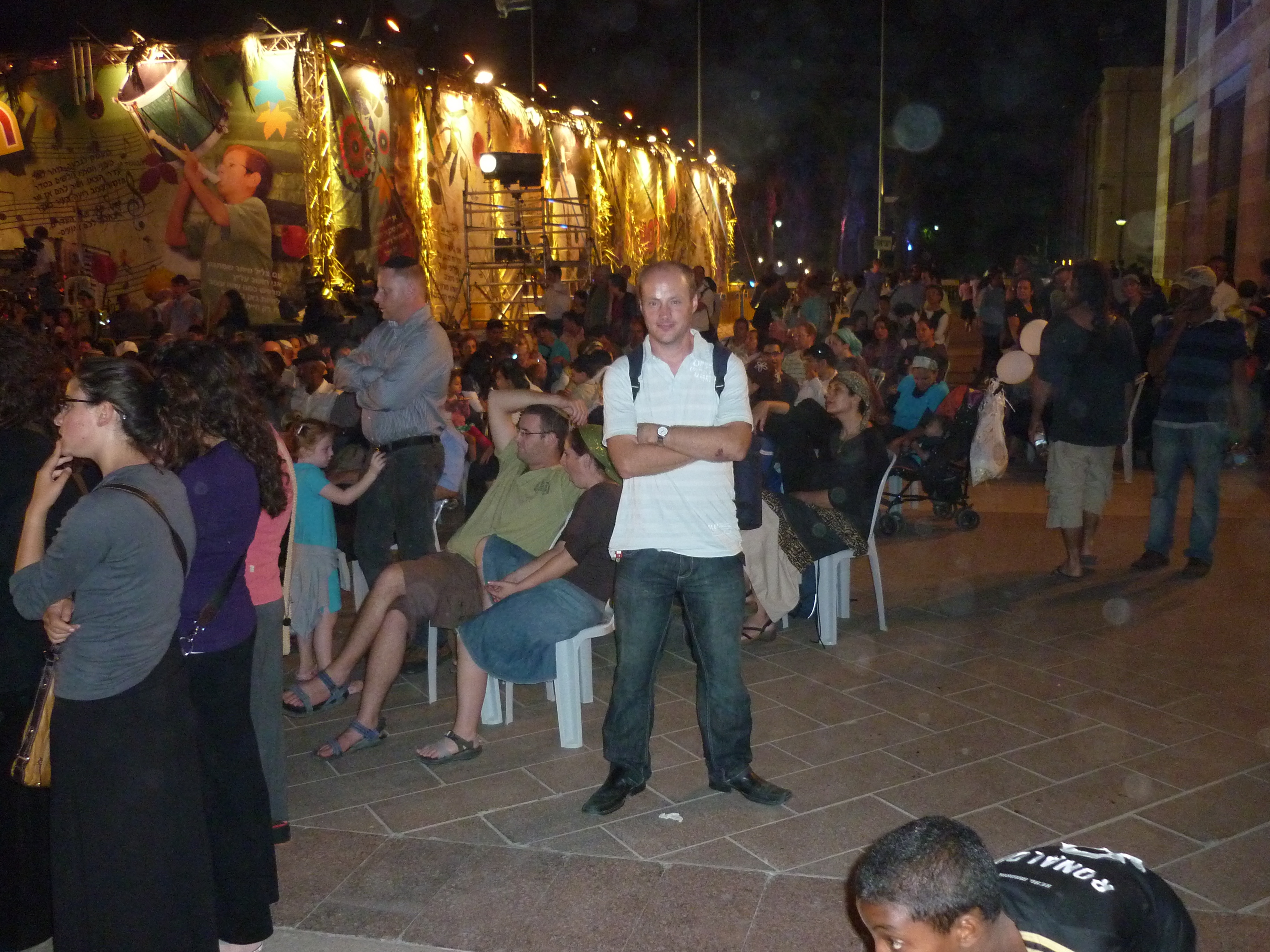
Jerusalem Knights – outdoor holyland theatre

I ventured out to the old city at around 10pm after an event at my church…

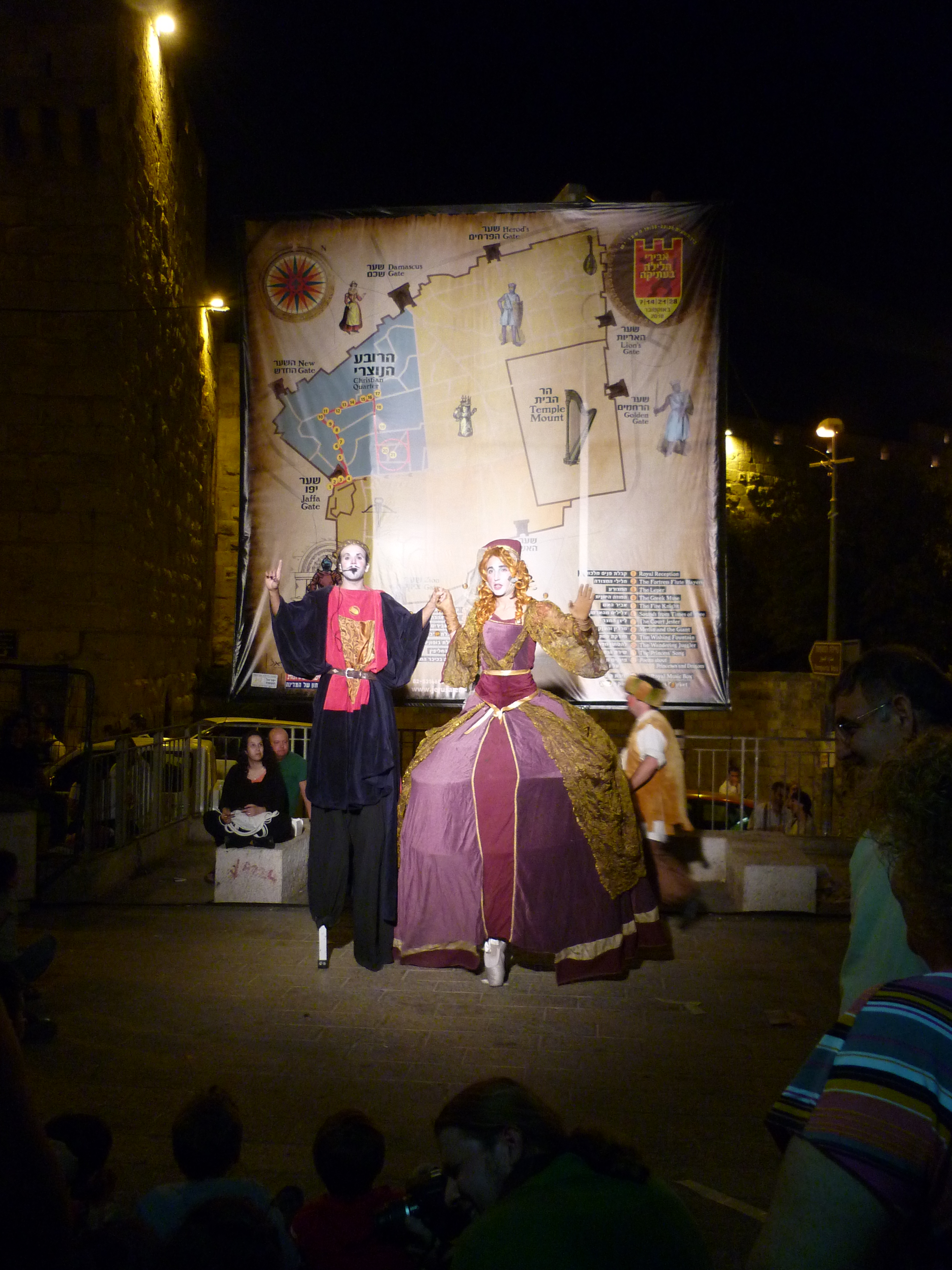
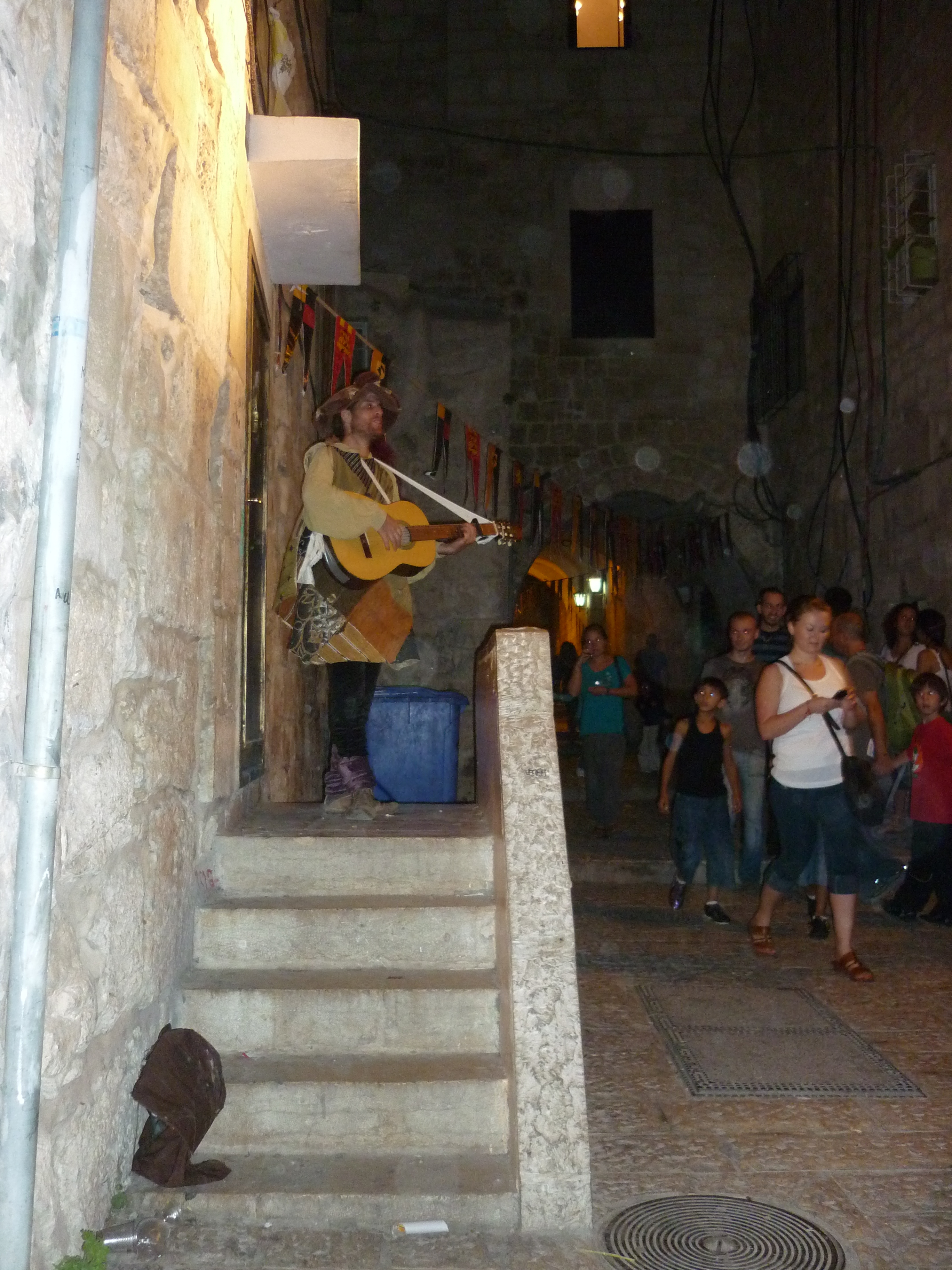
The flags hung on the road signs here originally got my attention last week, so I decided to take a look, this event is a collection of actors dressed up in costumes in different parts of the old city.

The exact era they are meant to be representing I am not quite sure, as there is none of the posters or dialogue spoken by artists in English.

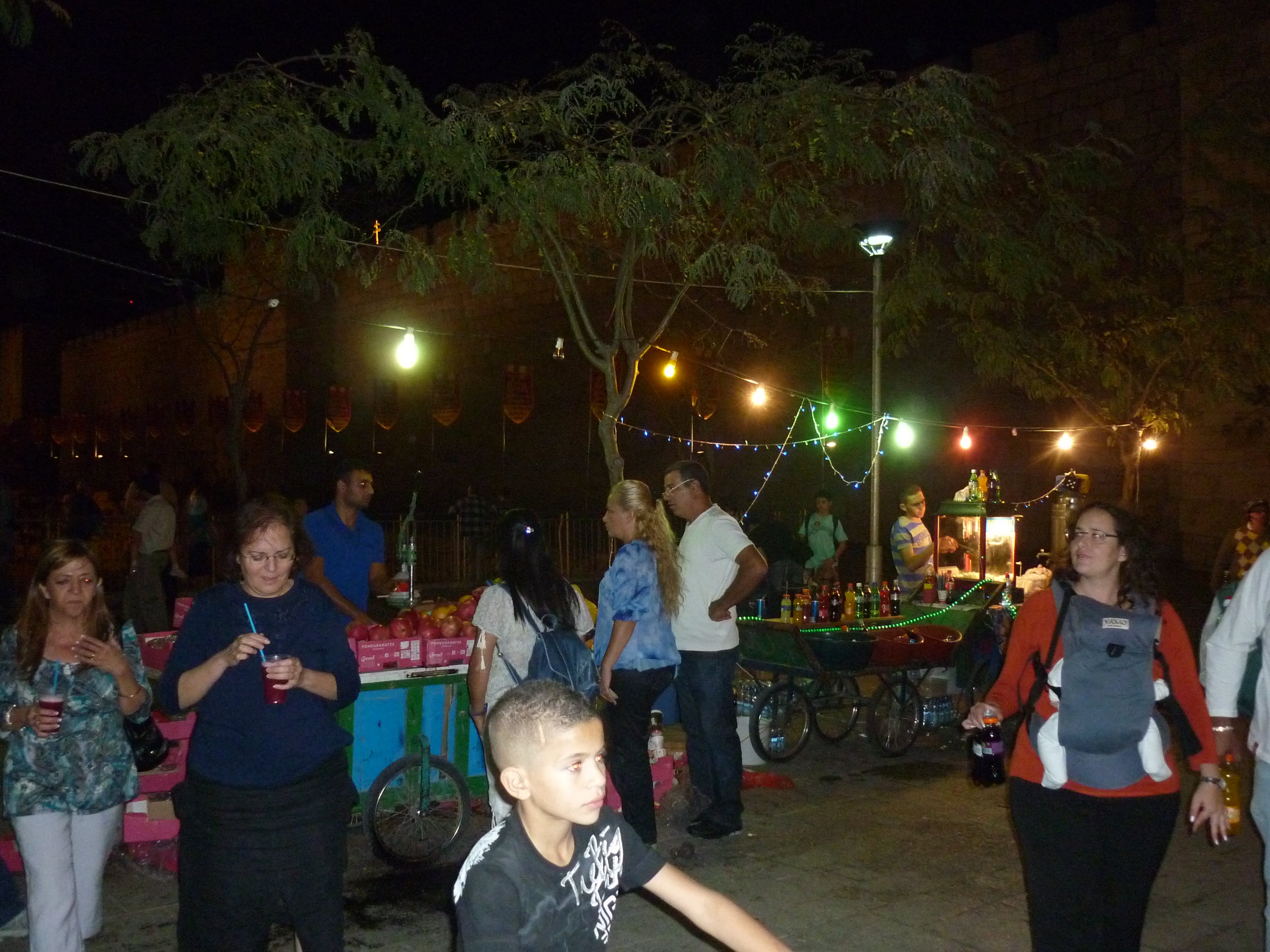
Its all quite exciting though, the costumes look great, and there is people swarmed into the alleys of the old city following the signs and flags that point to the path to short distance snaking around the street corners to the next artist.

There are Jews, Arabs, Christian pilgrims and foreigners of all sorts here watching what is going on.

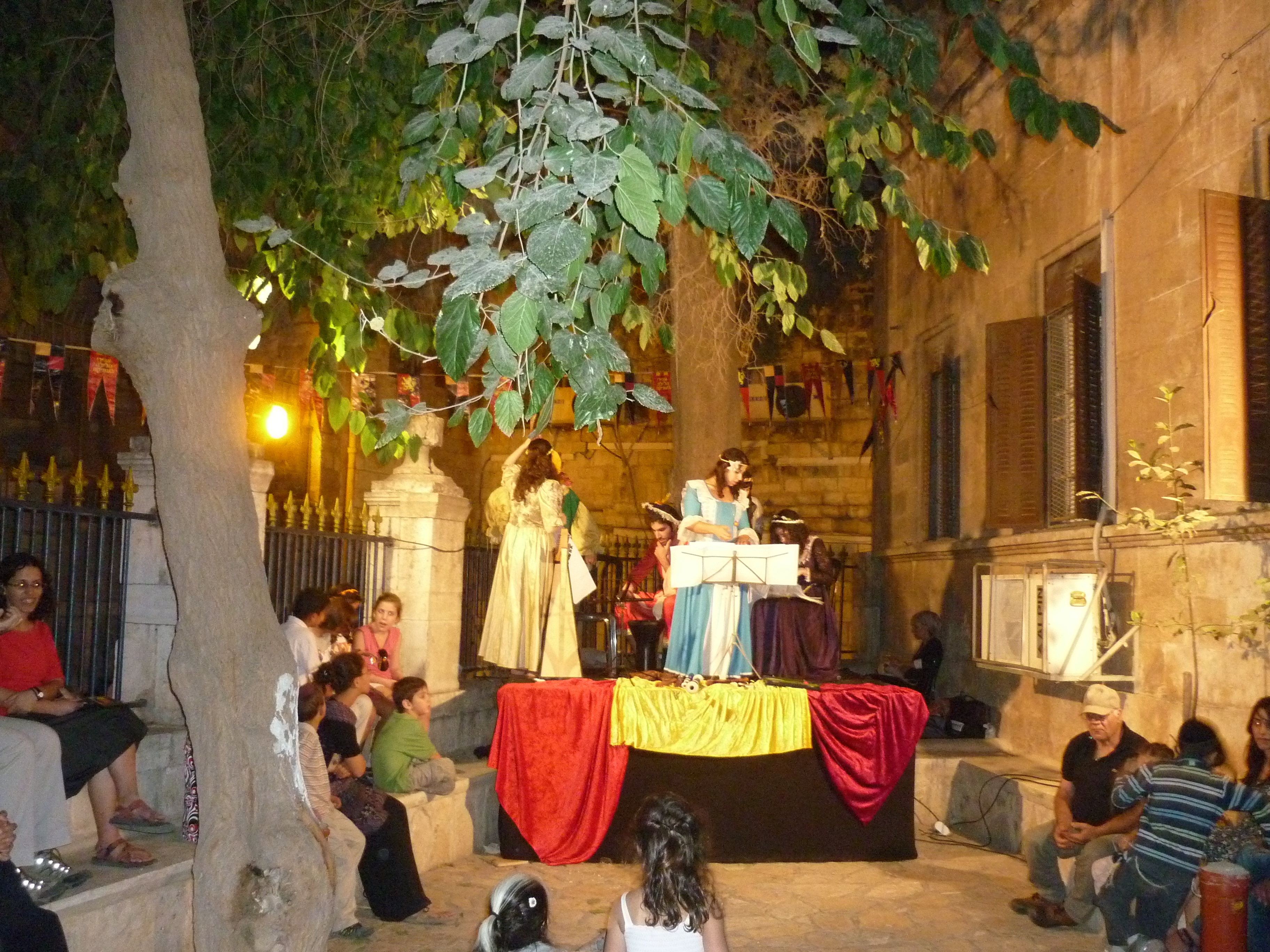
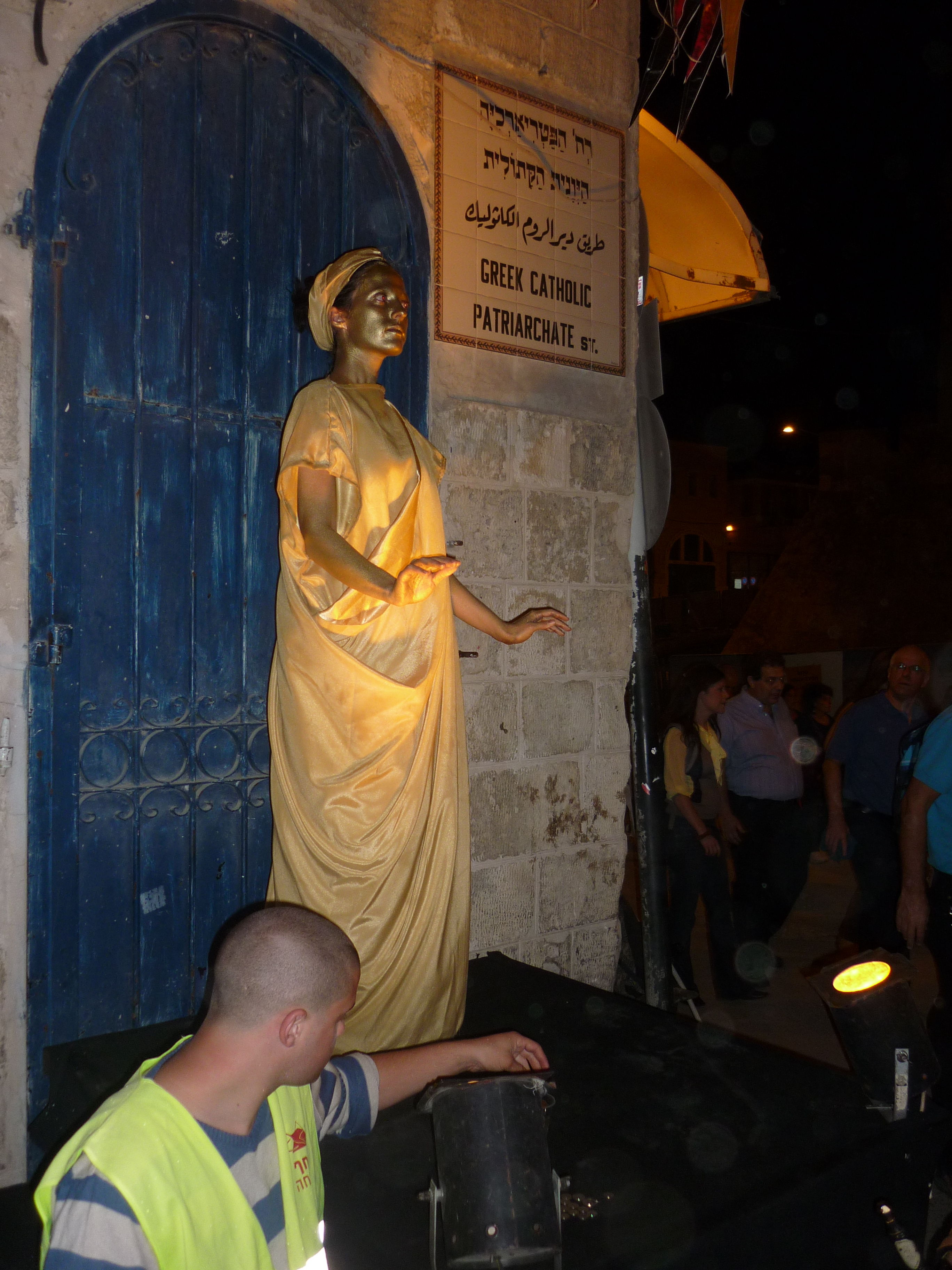
The actors and artists are princesses, slaves, musicians, poets and all kinds.

This lady on the left is dressed up in a Covent Garden-esque style as a fountain statue, she is holding a hose pouring water into a bowl below.  There was a kid running around which I was secretly hoping she could ‘accidentally’ put her finger on the end and spray him with water but alas no. 🙂   This musician here could do an older instrument, this guitar looks a bit too modern.
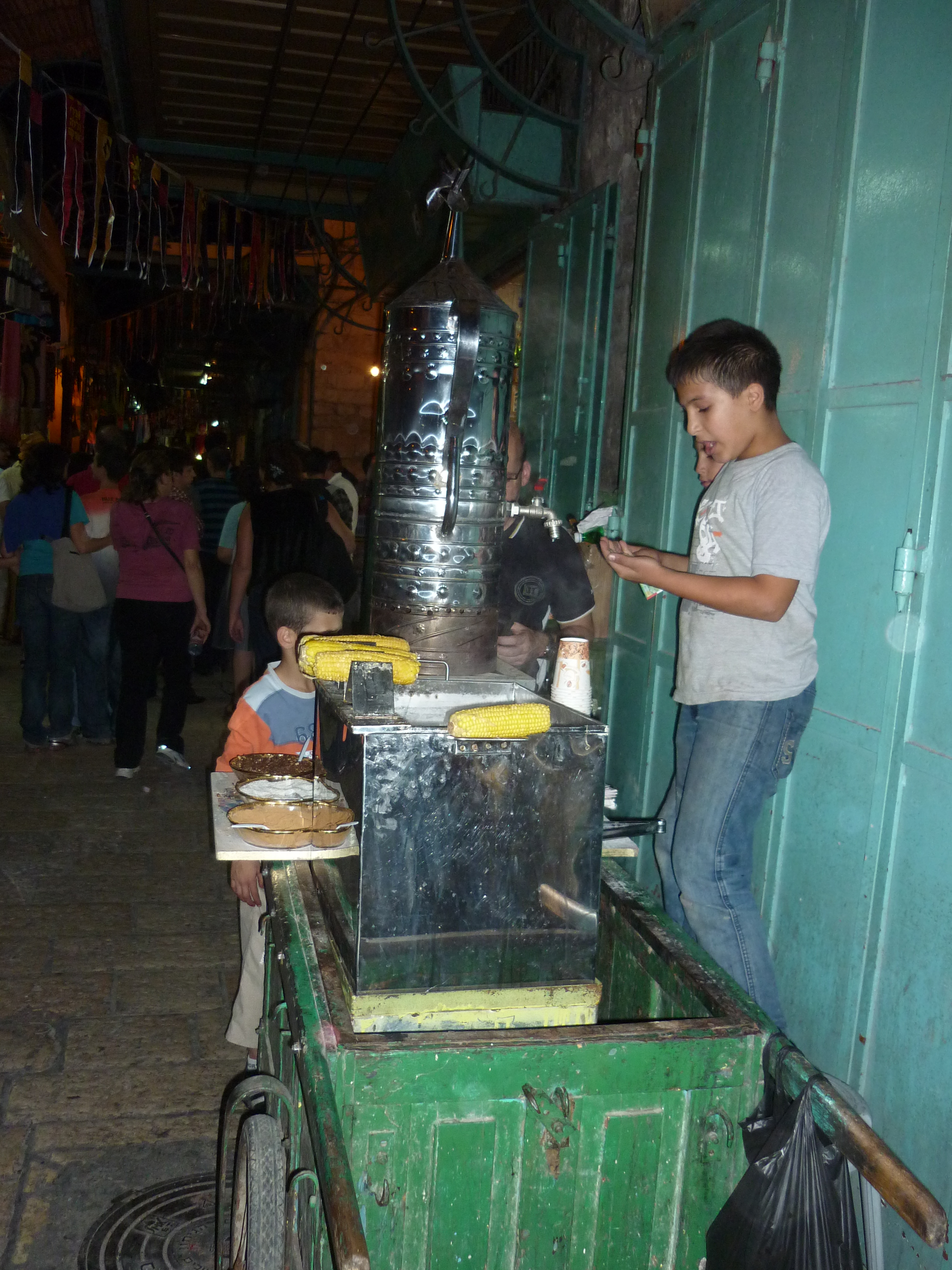
Here the usual traders in the old city are doing business, albeit with a few extra twists.  There are of course the fruit juice squeezer stands and the lounges with strong coffee and smoking pipes, but the young Arab lad with this large metallic teapot on wheels caught me eye, especially when it was not tea or coffee, but this (the name escapes me) particularly pleasant middle east beverage made from hot milk, coconut, cinnamon and lots of sugar = 10 Shekels (UKP1.85)

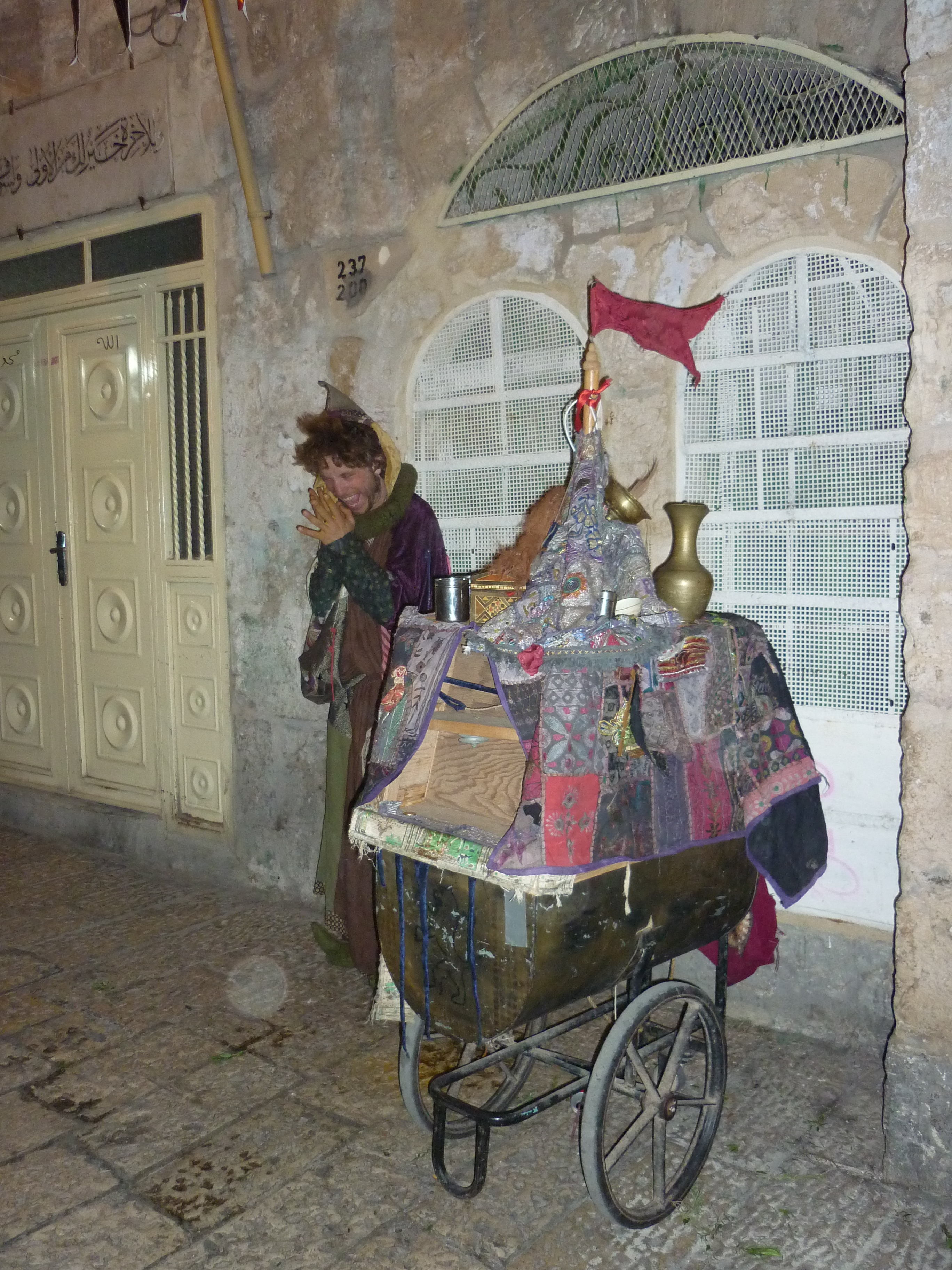
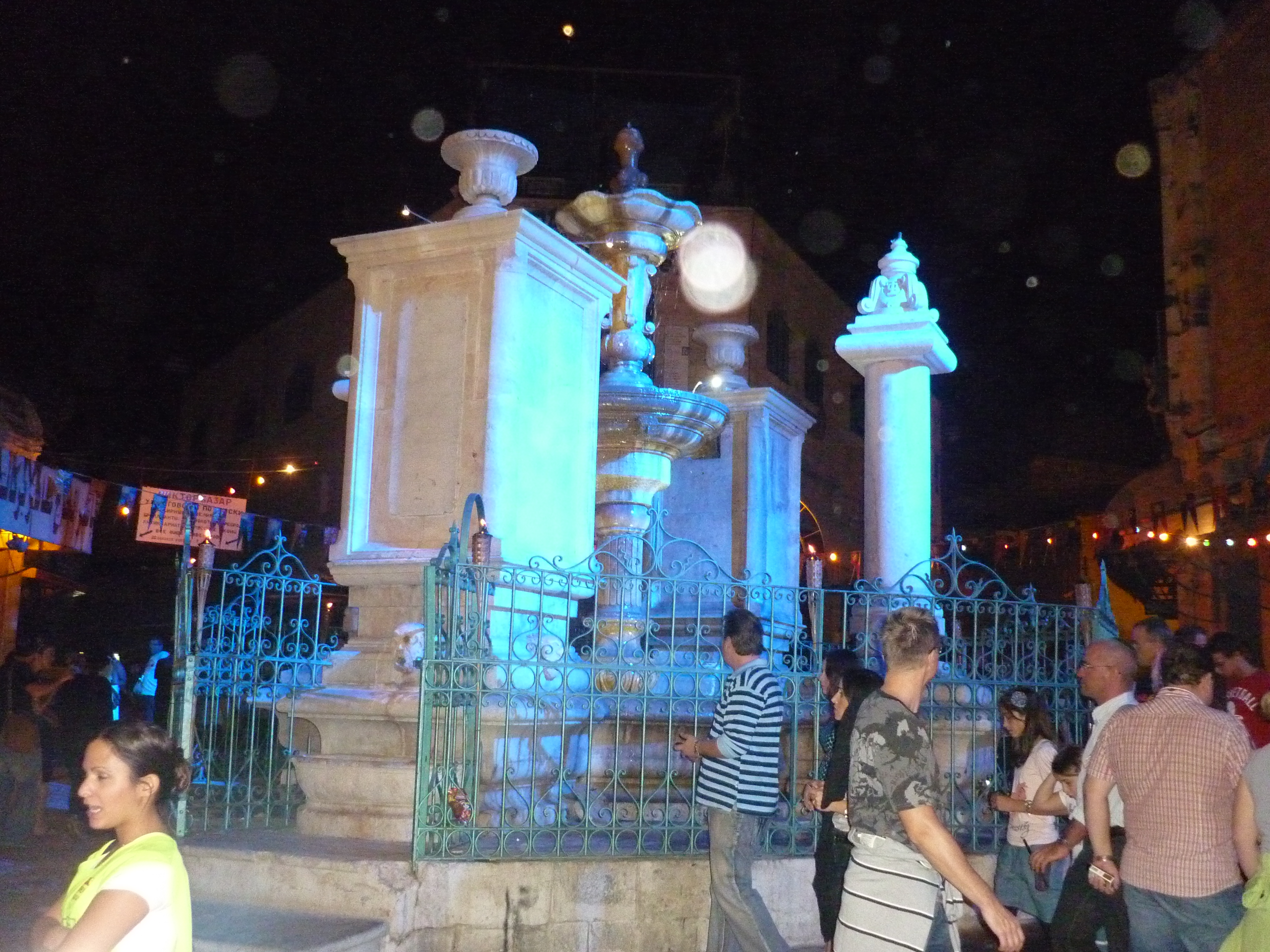
This fella looks fresh out of a Victorian novel.   Right, the fountain in the centre looks nice illuminated in blue at night.

This was quite a nice evening walk, I may try and bring some friends out here next week as its on every thursday night in October.  If you are around Jerusalem this month check it out.

Kosher highway code & Middle east motorcycling expedition

Walking past an ultra orthodox neighbourhood, sometimes I see these signs a little different from other parts of town.

Driving is forbidden by religious Jews on Shabbat or on holidays, for everyone else secular Israelis, Arabs or foreigners should not drive past these signs in these neighbourhoods on those days as deemed to be highly disrespectful to this community, these signs are a reminder you are entering a religious area.

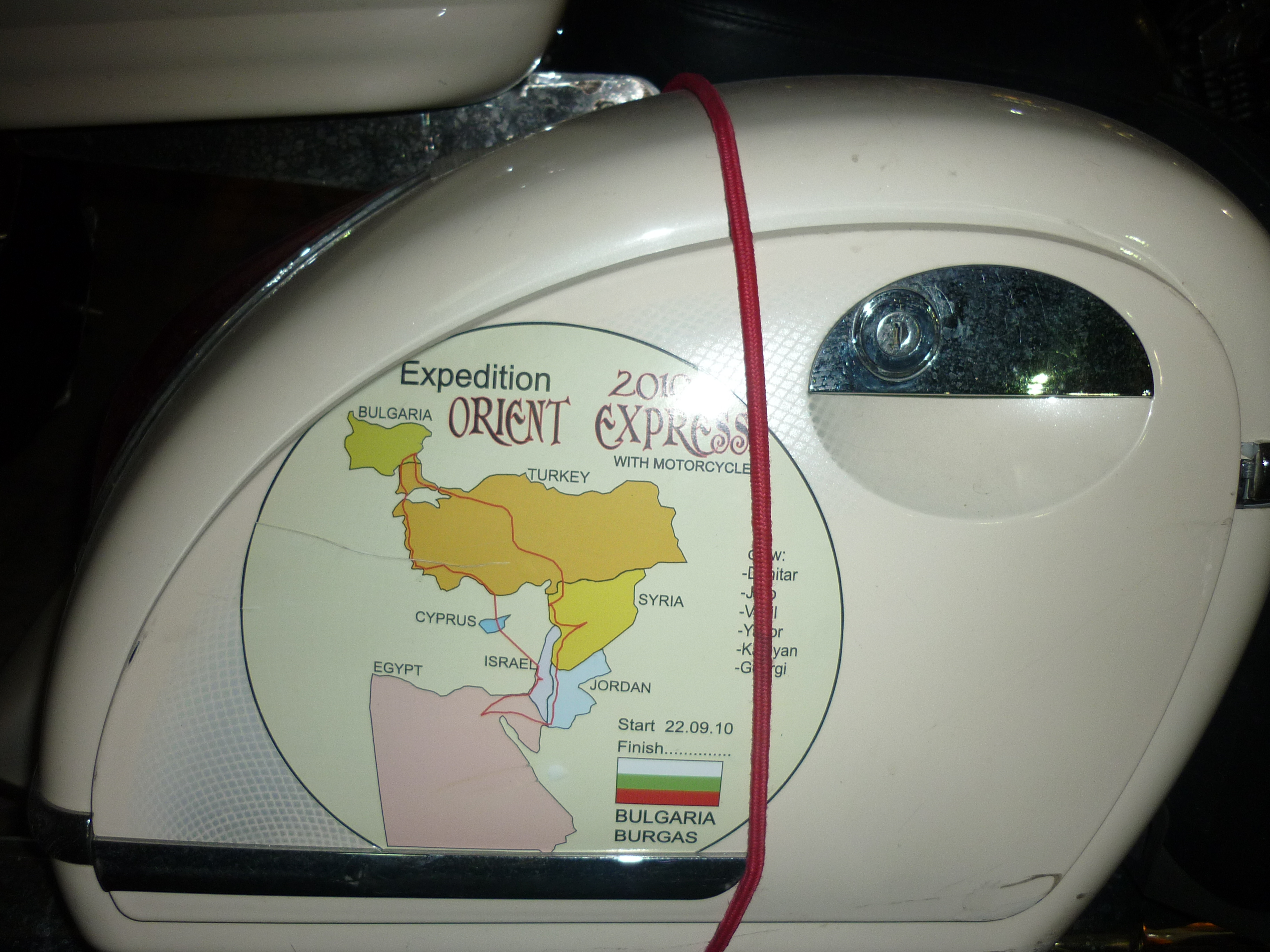
On the way home from work I saw these large high end looking motorcycles, four of them, Harley Davidsons and BMWs, just round the corner from Zion Square, where Ben Yehuda Street meets Jaffa Street.   The owners are nowhere to be seen, but the bikes have been here two days now, the plates on the bikes are foreign.   On closer inspection, they have come from Bulgaria.  Zoom on the fuel tank for their tour.  Going into Damascus, Syria, then through Israel and Egypt sounds like a nightmare to plan for your visa application though!

There isn’t a web site mentioned, a quick search with Google shows nothing, if this is your club, or you know who is doing this trip, please comment or add a link 🙂


King David Museum, Hezekiah’s tunnels and Silwan troubles

At the weekend I went around the outer parts of Jerusalem’s old city walls.   Outside of the dung gate, is the south east corner, you head around the corner to see Absalom’s tomb and the Mount of Olives.

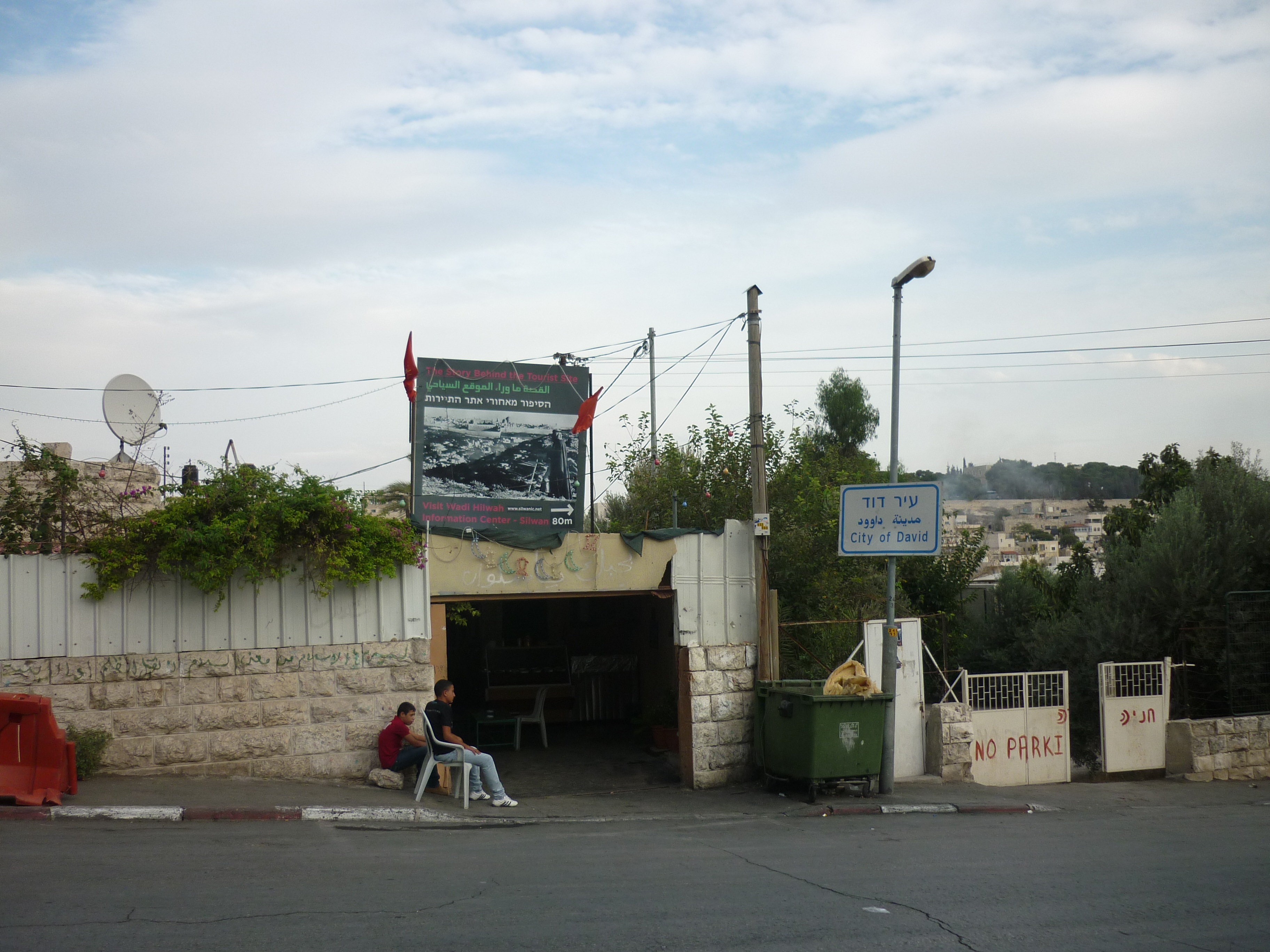
Here there is a junction which contains a volatile mix of neighbours.   On the corner is an archaeological dig, containing artifacts that date from King David’s time.   On the same street this is the entrance to the Arab town of Silwan.   This is a much troubled district, and the name Silwan often comes up when there is news of conflicts in this city.

On the news this week you may have seen a picture of a car with a boy in the air upside down in the air having being hit by a car in Silwan after stoning this particular motorist, it seems the Subaru driver sped up or swerved to avoid being hit by the youths.   Seems strange there happened to be someone with a camera who did such a perfect shot of this moment.  http://www.jpost.com/Israel/Article.aspx?id=190682

A few houses from the corner is this Arab shop with political message outside.

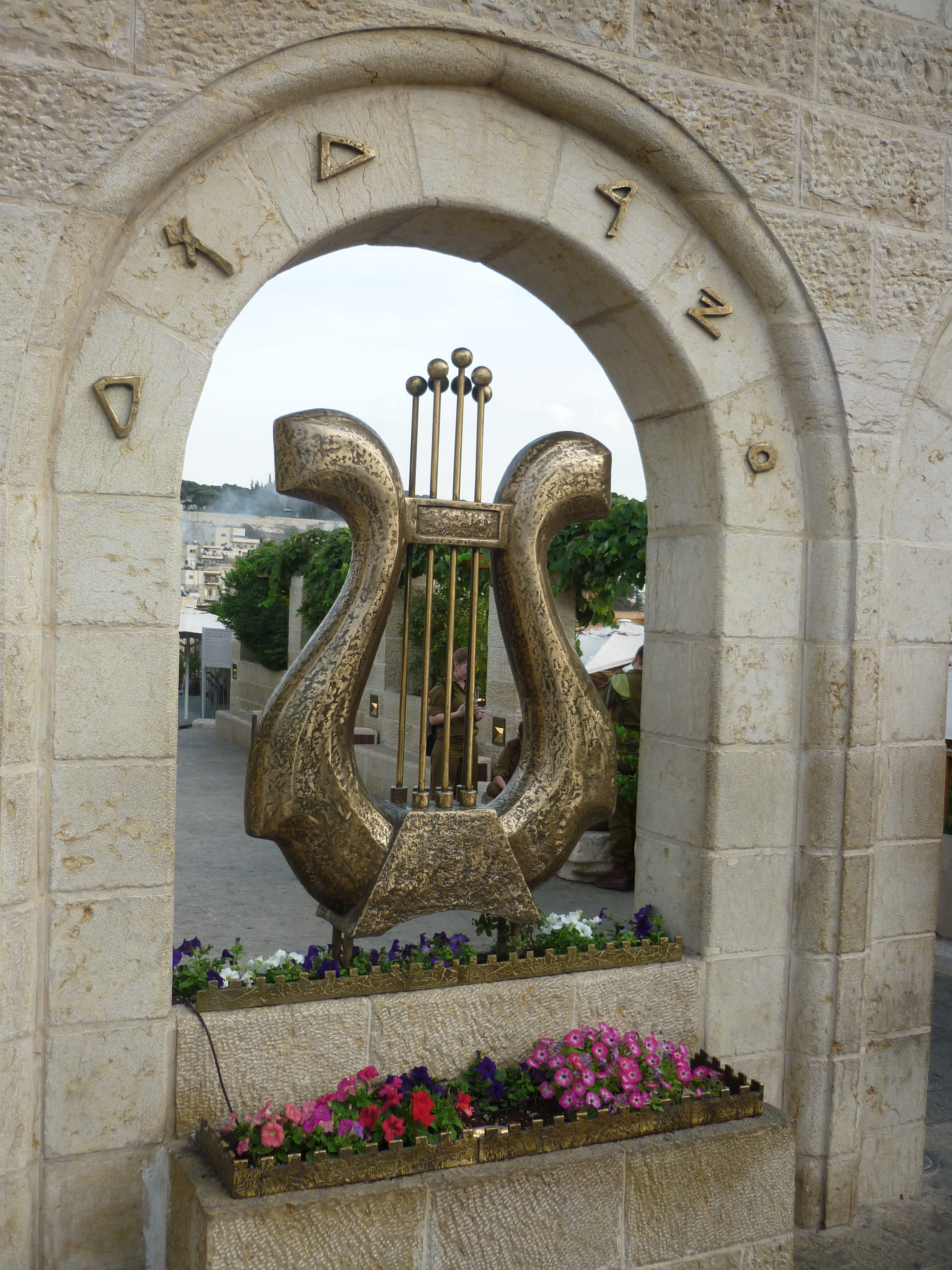
About 3 or 4 more houses across is The City of David museum which has a cinema with a 3D film of biblical history of this place and a guided tour of the buildings and a chance to go under Hezekiah’s tunnels.  I went here last year its well worth a visit.   The tunnels are a mile long of walking – in complete darkness; and, upto your knees in water. 🙂   I didn’t get a picture of the exact front part of this as there armed guards in front.   But looking through the windows you can see the nice decorations outside.

Looking behind back to the old city walls and there are about 40-50 soldiers in uniform getting off a bus.  (not visible, but just around the corner)  Glancing back to the museum front, there is a lone security guard, armed, but unusually (that I have never seen someone holding a handgun out of a holster) he has a pistol in his hand.   Again, I glance down the street to see a group of Arab kids gather outside a shop.  There is nervousness on both sides and the police and army are on alert from recent troubles.

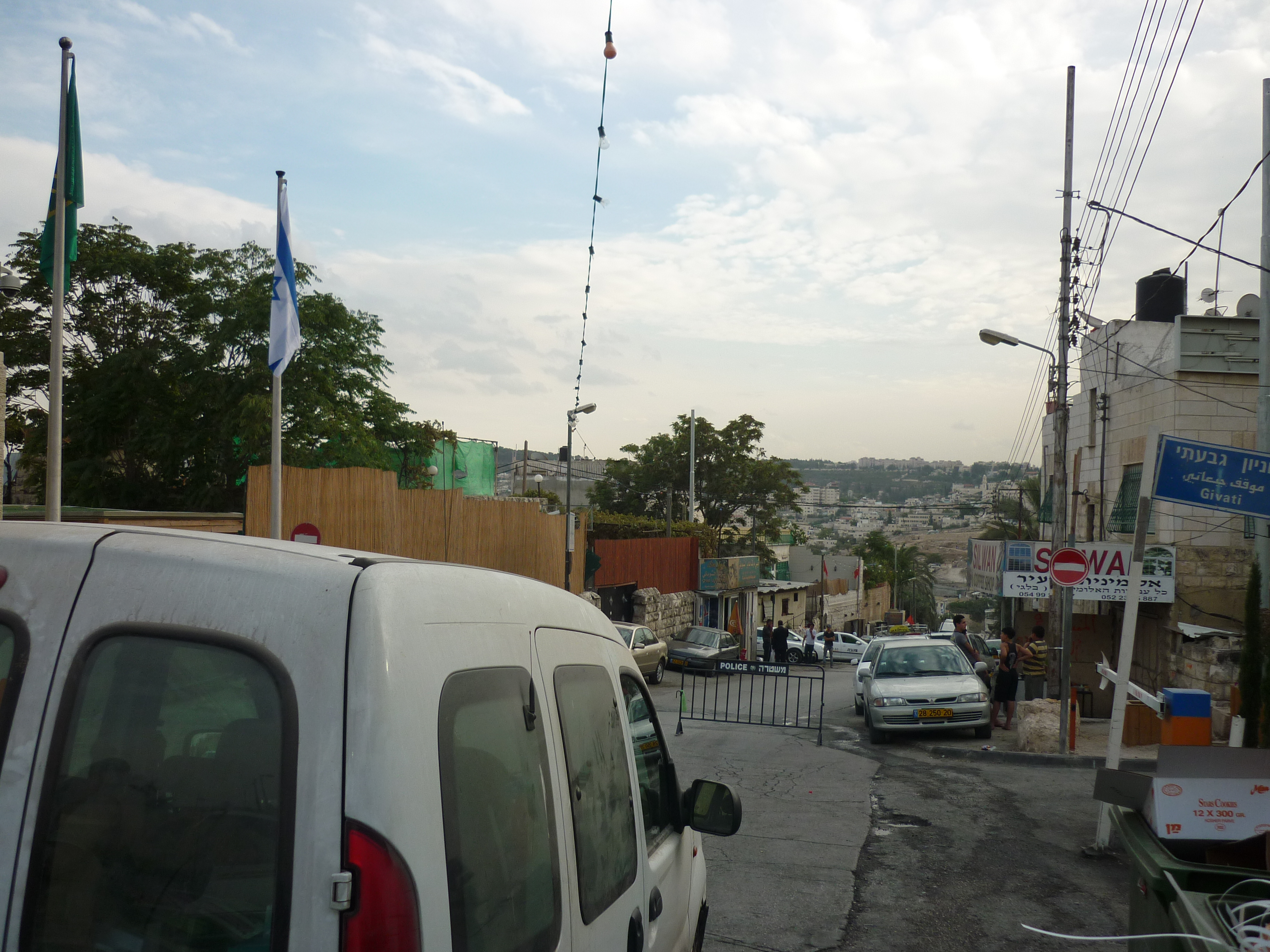
Below you can see the green flag which has a logo representing Israel’s national parks and historical places.  Heading down this street as a foreigner to see the museums is safe but because extra security measures in place, but just a short distance down here, not past the museum where this barrier is.   Beyond this there are rowdy children throwing rocks at the fence where the historical digging is, there is rubbish everywhere and some of the cars look vandalised.

But here in the unpredictable middle east, throwing rocks can be a prelude to starting a war where each side retaliates.  This is one of the many contested bits of property here, ironic given the historic sites and archeological digs that showed who lived here long ago.

I can’t emphasise enough “pray for the peace of Jerusalem” and I do feel sorry for the Arab people that live here and are given different messages by different authorities, I hope and pray that Arab people will find their way out of darkness of the regime that governs them (Hamas and Hezbollah)  into the loving arms of the Father.

How to fix a laptop with overheating issues, like this Dell Inspiron 1150

IT repair stuff.   Skip to next articles if you just want to read about my visits to bible locations.

One of my colleagues asked me to look at old (about 2004) Dell Inspiron laptop, it needs to have the files moved over to her new Win7 based HP Pavillion laptop.   The Dell is being retired as it has some problems freezing upon booting up.    I suspect this is an overheating issue, so I decided to pull it to bits and clean and repair it.

This particular laptop like a lot of Dells is one of the easiest laptops to take apart and work upon.   Rather in the common tradition of throw something away I wanted to see if I can make it usable.   To get this machine apart it just needed a plastic strip and keyboard removed.   To do my housemate’s Toshiba Satellite and my old Compaq to fix clogged fan/overheating issues required the whole machine to be completely dismantled, ie: remove screen hinges and separate both halves of the base, which is fiddly and needs about three dozen screws removed.

Overheating issues are a common issue with laptops, Toshibas often get dust stuck in the fans causing the bottom to get very hot, causing a fault or shortening the life of the motherboard and processor chip.  HP were also plagued with problems with their Pavillion line.   Here I will show you the techniques I used to fix this Dell:-

Brief legal spiel: Warning, do this at your own risk. Additional, before taking computer apart, disconnect all cables and remove battery.  Work somewhere clear and put the screws in such a way where they wont get lost or get put back in the wrong places.  But hey, if you computer is too expensive to get done by a shop and otherwise useless, and you have not fixed a laptop before, you might as well try this for the first time. 🙂

You need:  Small (flat and philips) screwdriver set, patience, spray canned air, small tube of Arctic silver thermal grease.

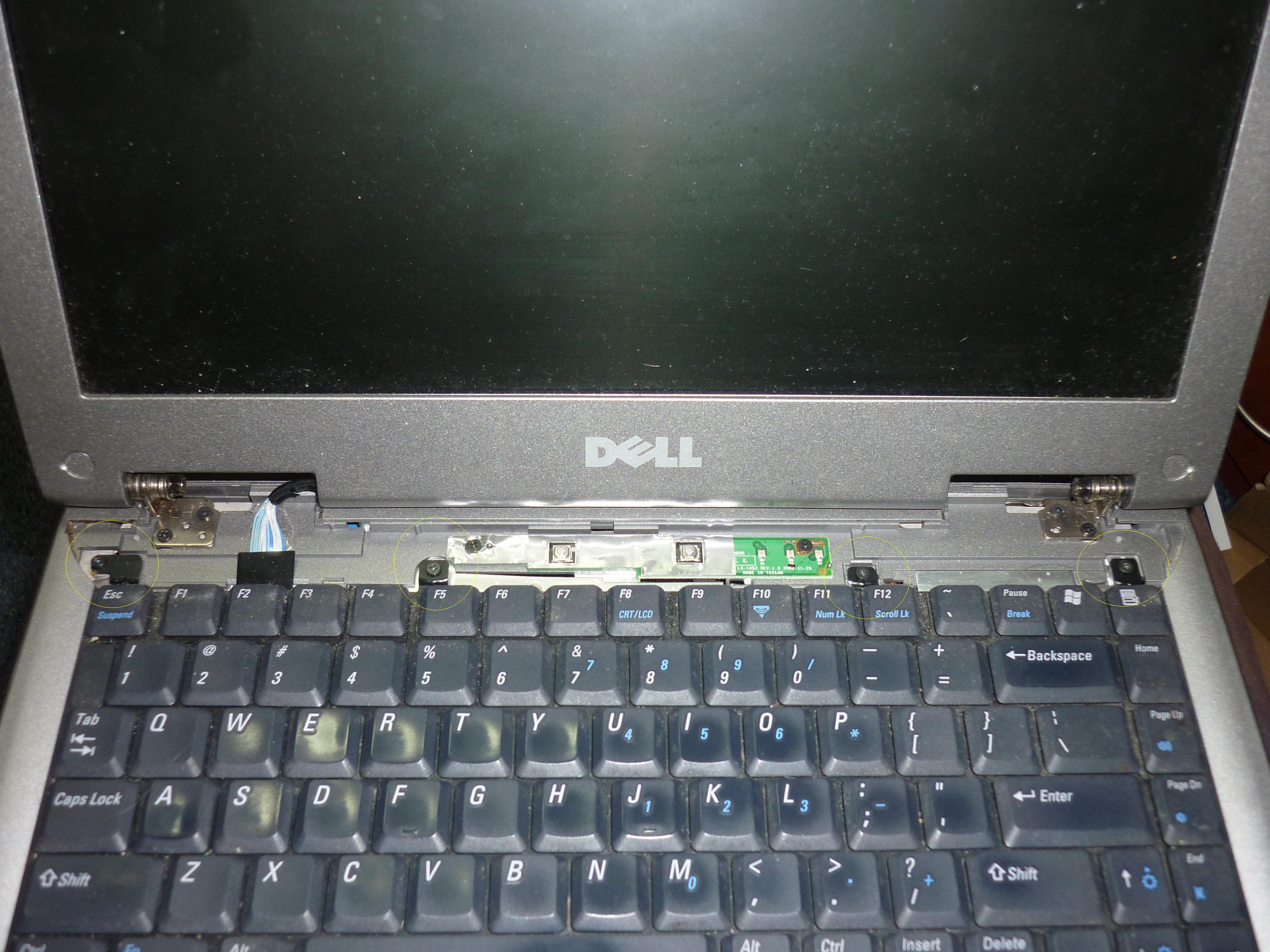
Almost all Dells can be dismantled by taking out the plastic strip above the keyboard.  Left: Gently use a screwdriver to prise the small slot to the right of the plastic strip, one you lift it up, you might need to also prise a small gap above F12 key, then just jiggle it a bit around the screen hinges and the panel will gently come off.   Right: remove the four screws with the rings I have shown.

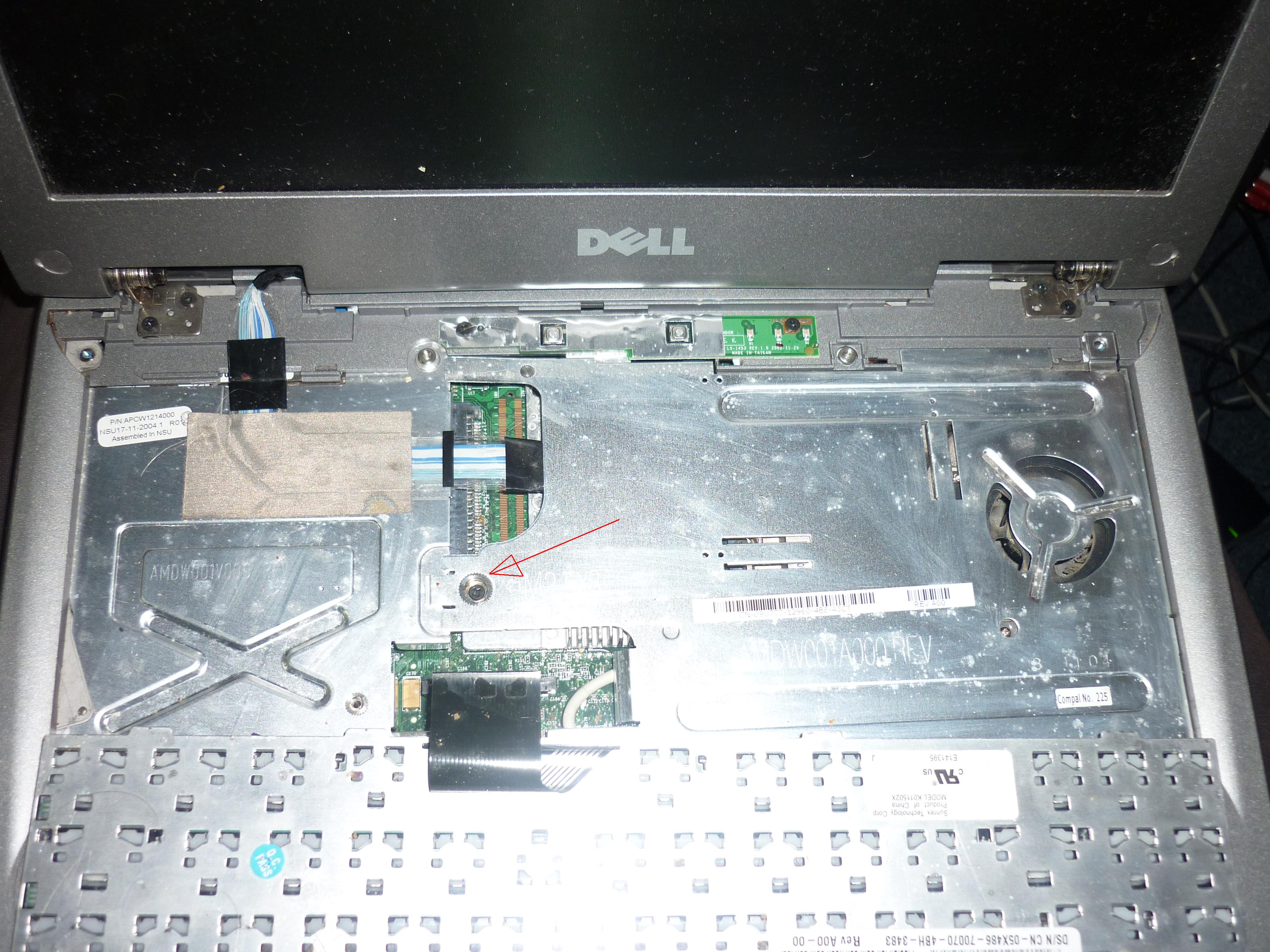
Left: I have flipped the keyboard over, detach the keyboard cable, it just needs a gentle wiggle to detatch.  Then, remove the screw marked and this metal panel can be lifted out. Right: there are four screws that hold the heatsink and fan assembly on.   These screws have numbers on as they should be removed and refitted in that sequence, as to avoid any weight of the heatsink putting too much pressure on one corner of the CPU chip.

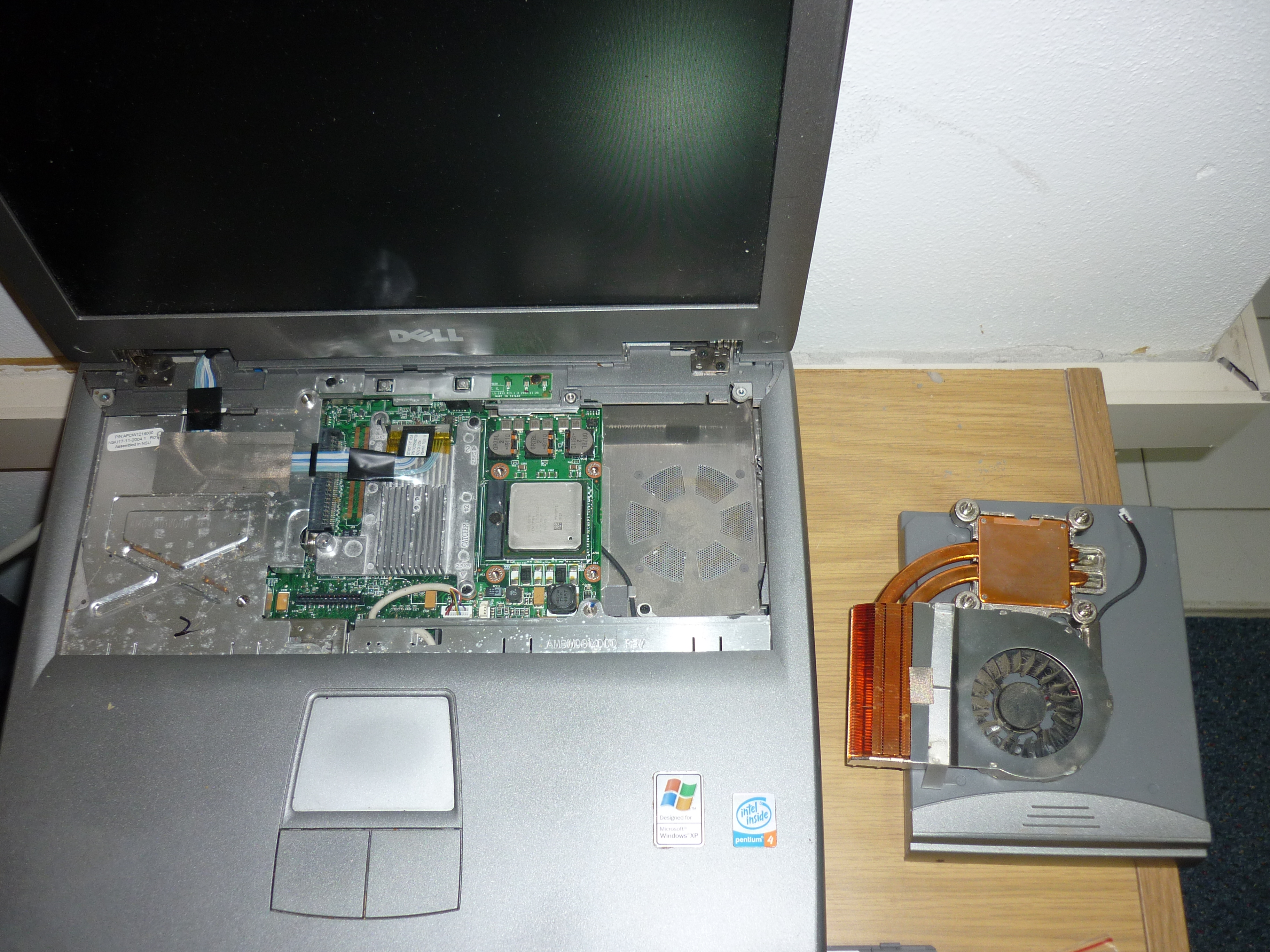
Left: I have cleaned off the old dried up grease with a some kitchen roll and a small bottle of alcohol (CD player cleaning fluid or nail varnish remover) from the surface of the processor chip and the copper surface of the heatsink, so its nice and shiny.  The heatsink is sitting upside down ontop of the battery. Once the grease dries up, it loses its ability to properly dissipate heat from the processor chip. 

Right: I have put a layer of new thermal grease on the processor, I use this stuff called Artic Silver 5, which is one of the best thermal grease on the market for its thermal conductivity.  You need to adequately cover the surface of the chip, not too much or too little.  The empty space where the heatsink and fan goes can be sprayed with canned air to remove dust and dirt.

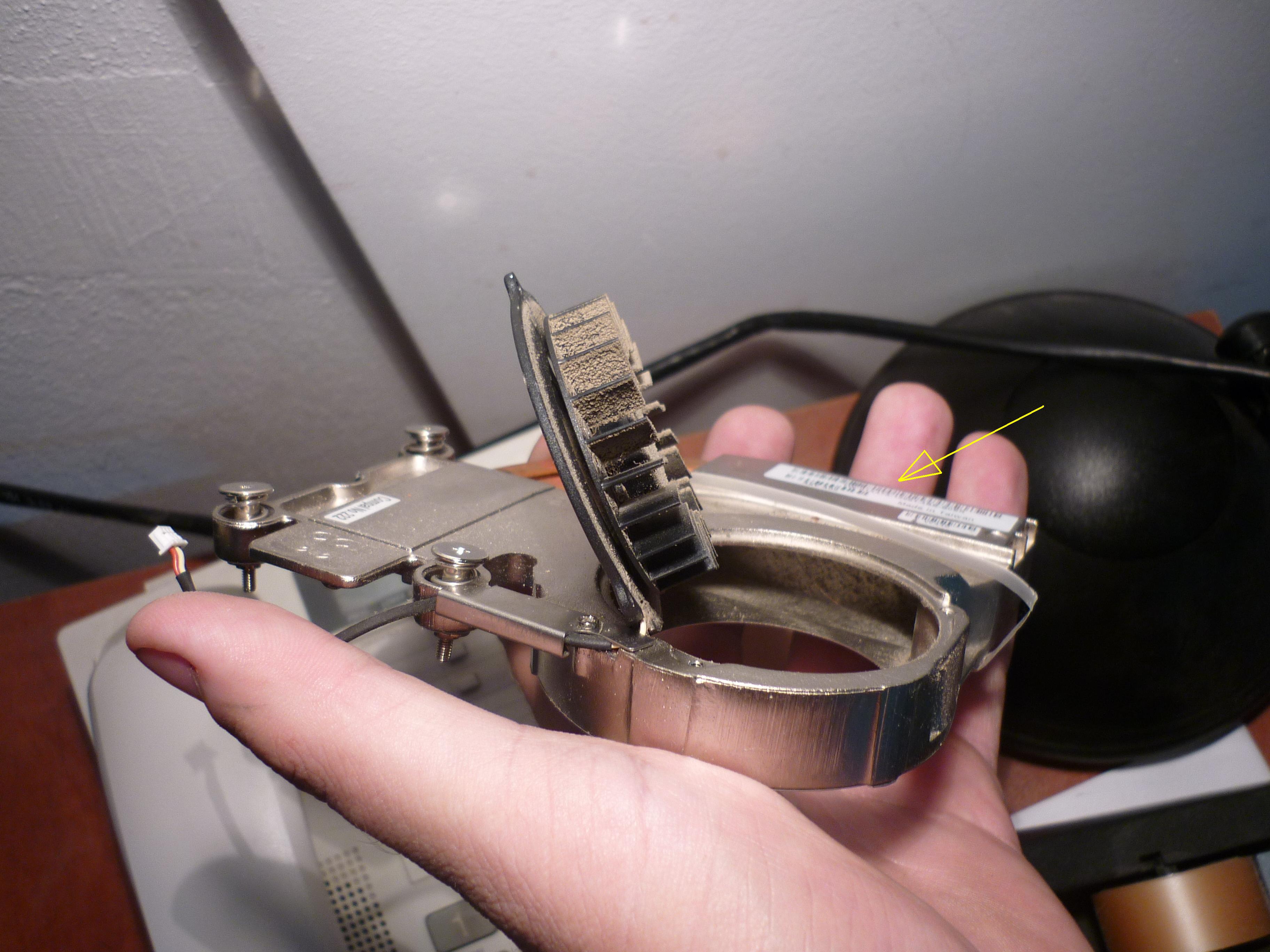
This the fan.   Another four screws were removed to get the motor out.   Towards my fingers you can see lots of fluff has collected inside fouling the vents of the copper heatsink stopping air from escaping.   Zoom in and you can see where the yellow arrow is and spray some canned air to clean all of this out.   Spray more air to get all the dust from the fan blades.

Reassembly is the reverse of disassembly.   Make sure the CPU fan is mounted on nice and tight but evenly.  When refitting the plastic strip, align the left hand side first, and work your fingers in snapping back in place towards the right hand side a bit at a time.   One thing I have not done is clean and replace the grease under the other heatsink where the graphics processor chip is.   This is worth doing at the same time though, as they can give heat problems, especially on HP laptops.

Enjoy your cooler running computer!

(shakes jam jar)   I am looking for funds to raise money for flights and insurance for my return to Israel in January, if you find this useful, or would like some advice, please consider donating me something, so I can continue to service equipment and resources for a Christian charity in the middle east.  If you would like your computer professionally repaired in UK or Israel please get in touch, I can do screen replacments or something minor like missing keys and software problems, I would be happy to do work in exchange for donations.   Thankyou.

In Sepia: Holyland pictures collection part 3

Part 1 – 2 – 3 – 4 – 5 – 6 – 7

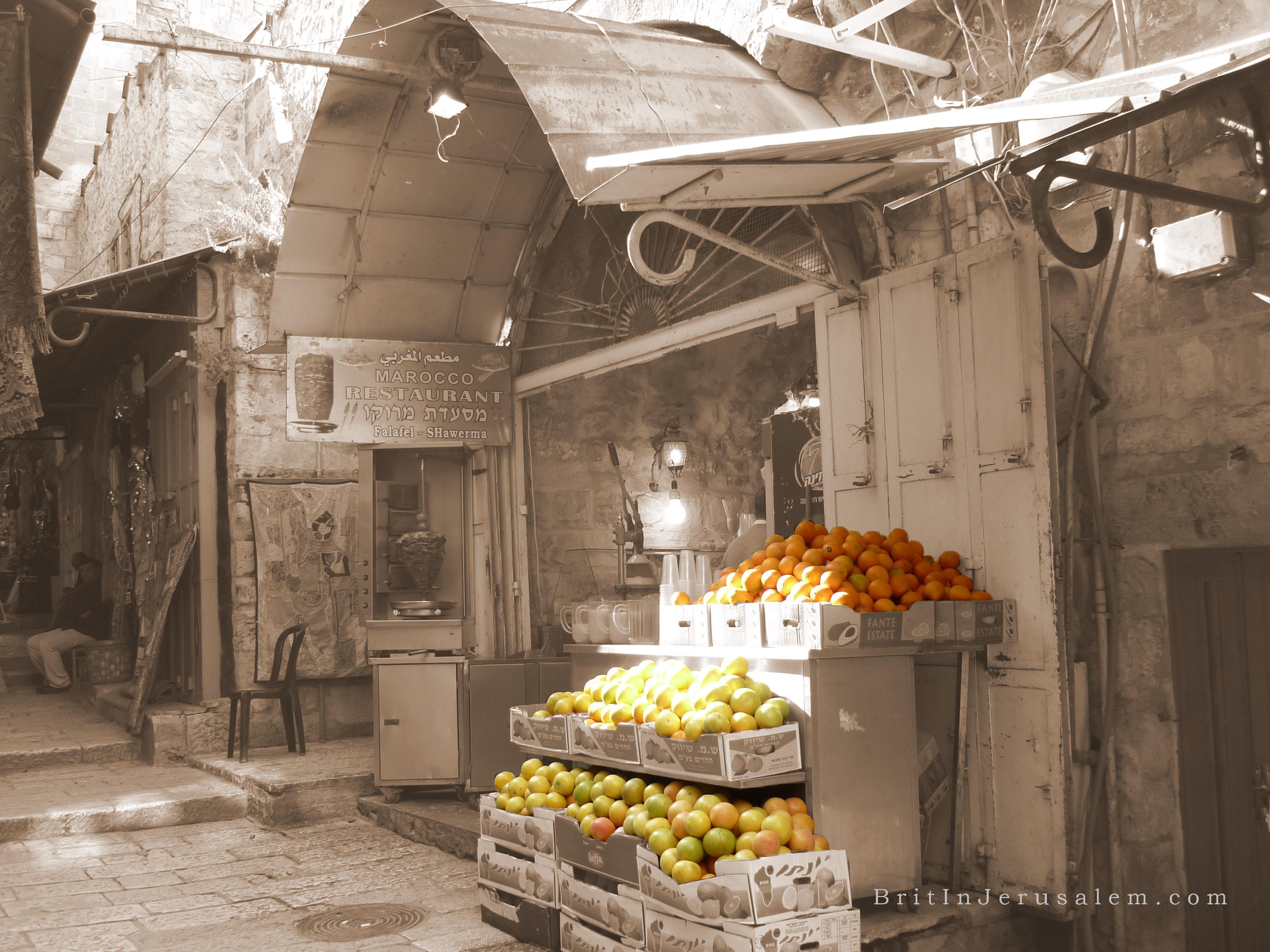
Cafe with hand operated orange squeezer with plenty of stocks of citrus fruits.

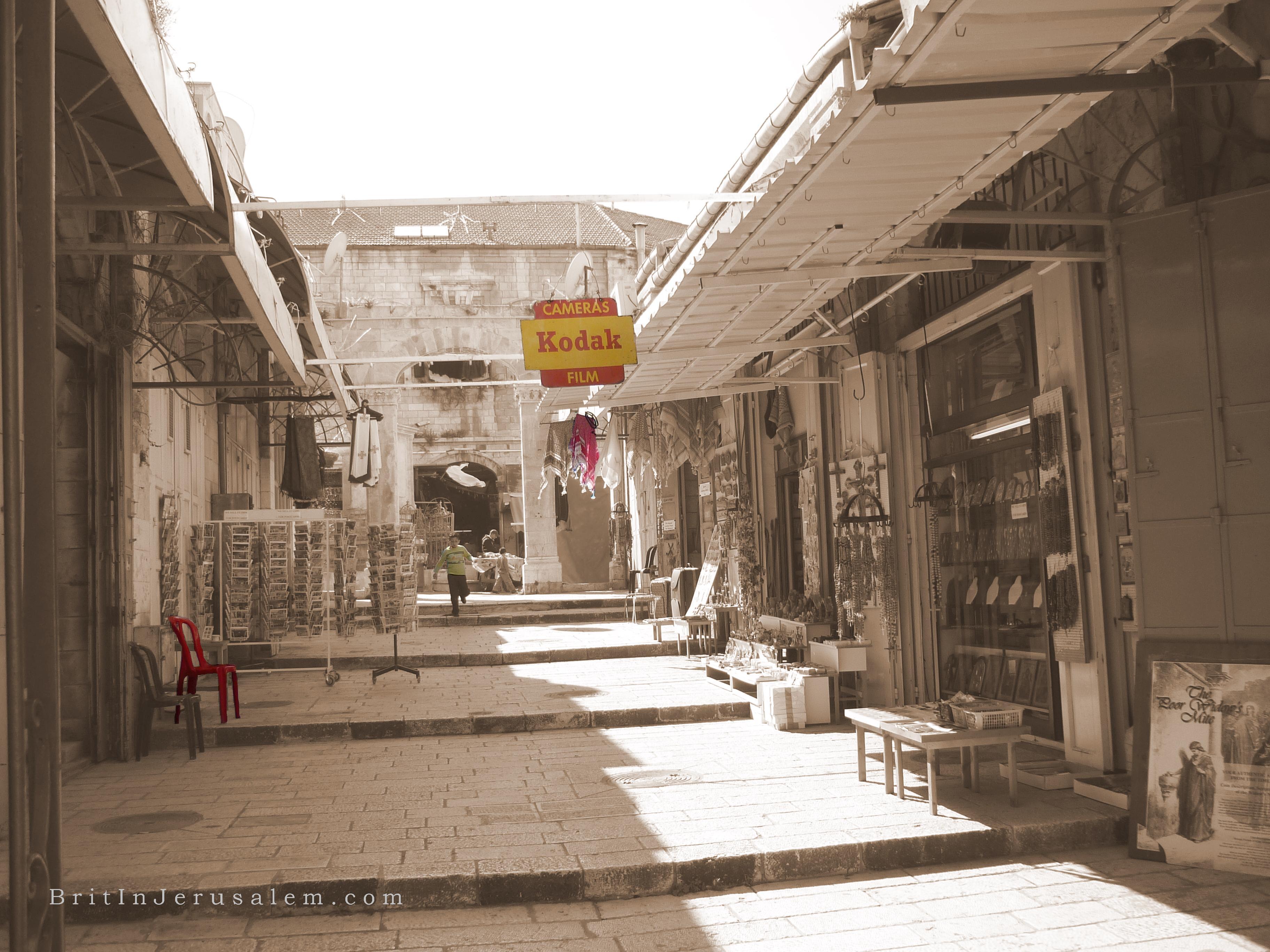
Tourist shops in the old city.

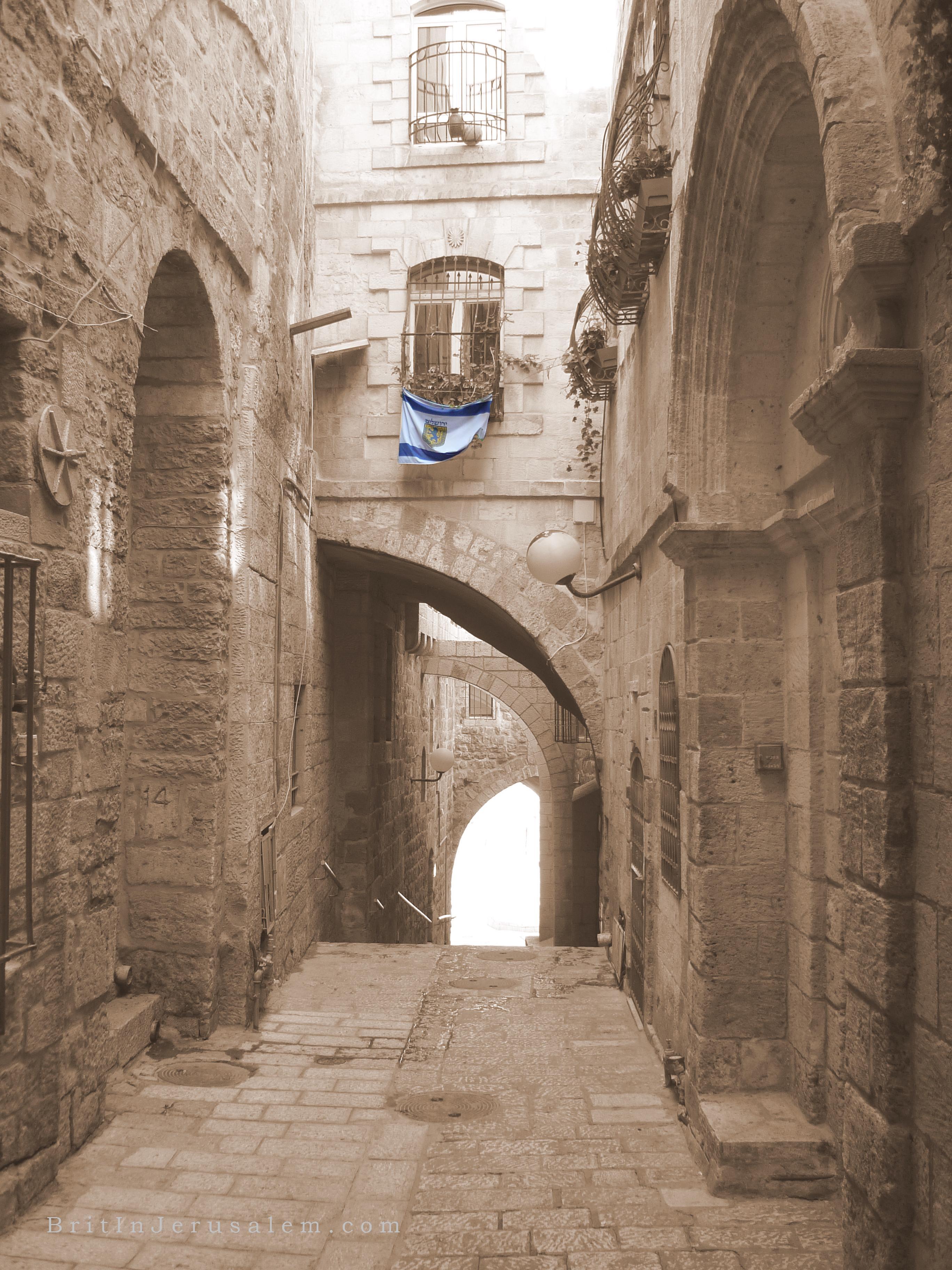
Street path in Jewish quarter of the old city of Jerualem.

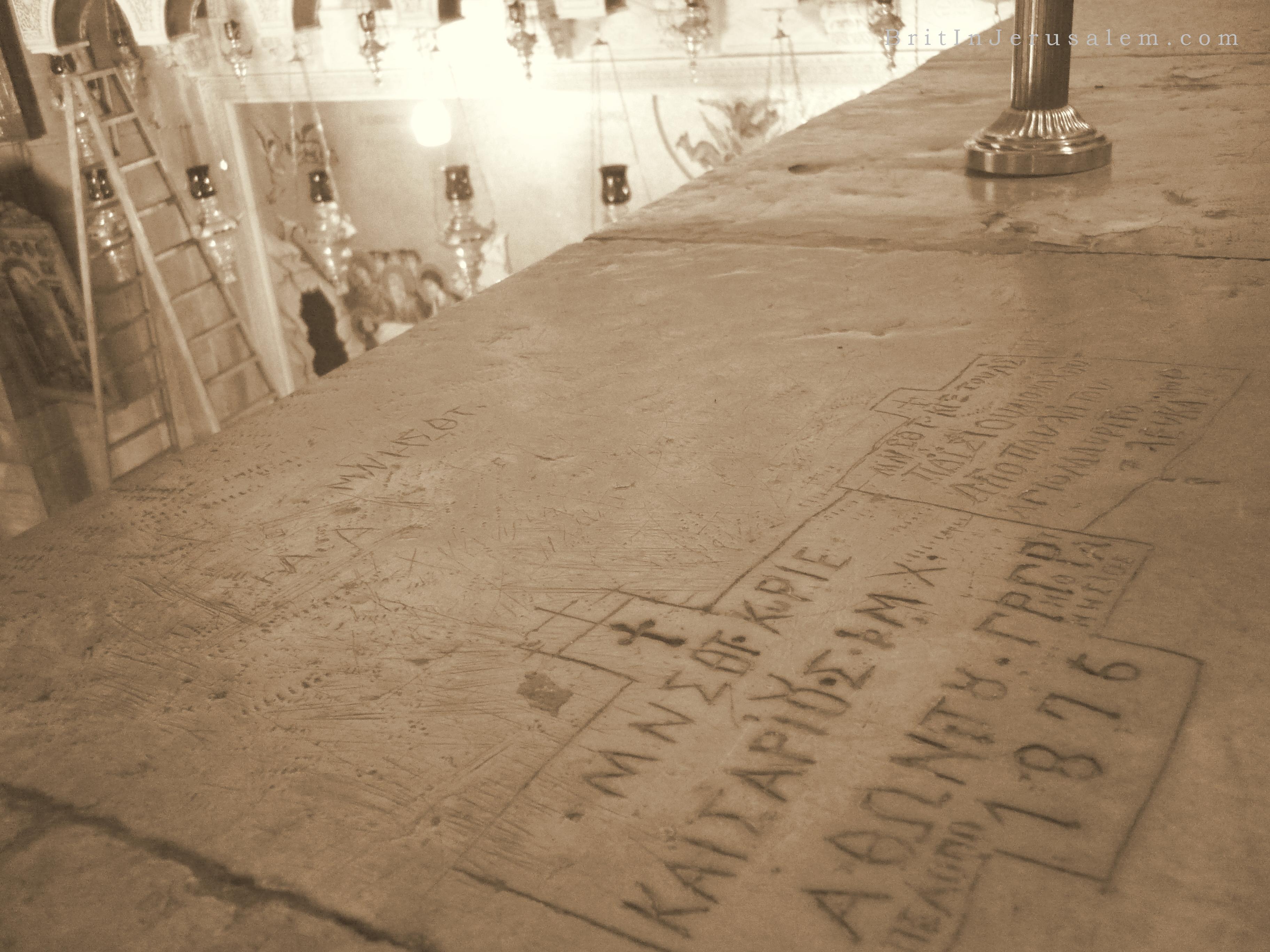
Greek graffiti in the Church of the holy Sepulchre

Part 1 – 2 – 3 – 4 – 5 – 6 – 7

St Peter’s fish

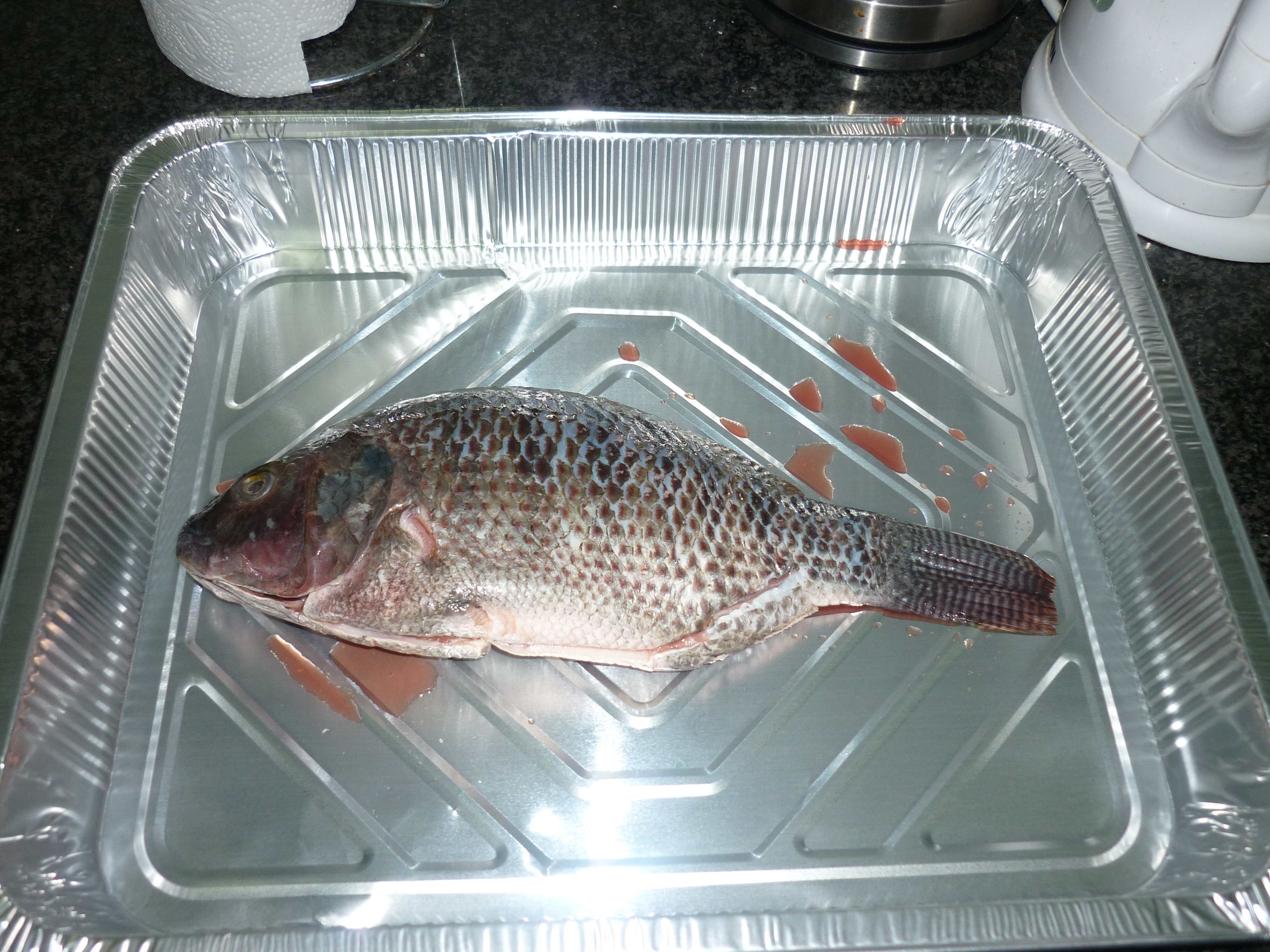
This is a Tilapia, also known as St Peter’s fish.  Commonly found in the Sea of Galilee, there are several restaurants in Tiberias (the largest city in this area) and places around Galilee.

Known as St Peter’s fish as its largely thought to be the creature that had the coin in its mouth in the bible.  Matthew 17 : 24

I went down the market and bought one of these for dinner for friday.   The fishmonger gutted it for me and rinsed with a shower head thing that was hanging on shelf.   The market is a good place to get fresh fish, even if the man had a cigarette in his mouth whilst working.

This one is about 6-7 inches long and has dark grey scales and white flesh once cooked, it also has a row of tiny sharp teeth.

After Jesus’ resurrection, after his followers were in disbelief he had come back to see them, he asked Peter for a piece of the fish they were sharing, as way to prove a point he was not a ghost.  Luke 24 : 40 I would take a bet it was some of this type of fish.

25 minutes under the grill at 150 and its looking good.   I need a bit more skill at getting the bones in one go though.   Also meant I found a use for some limes sitting in the back of the fridge. 🙂

I should of taken a photo before I cut the head off. 🙂

Sukkot tents

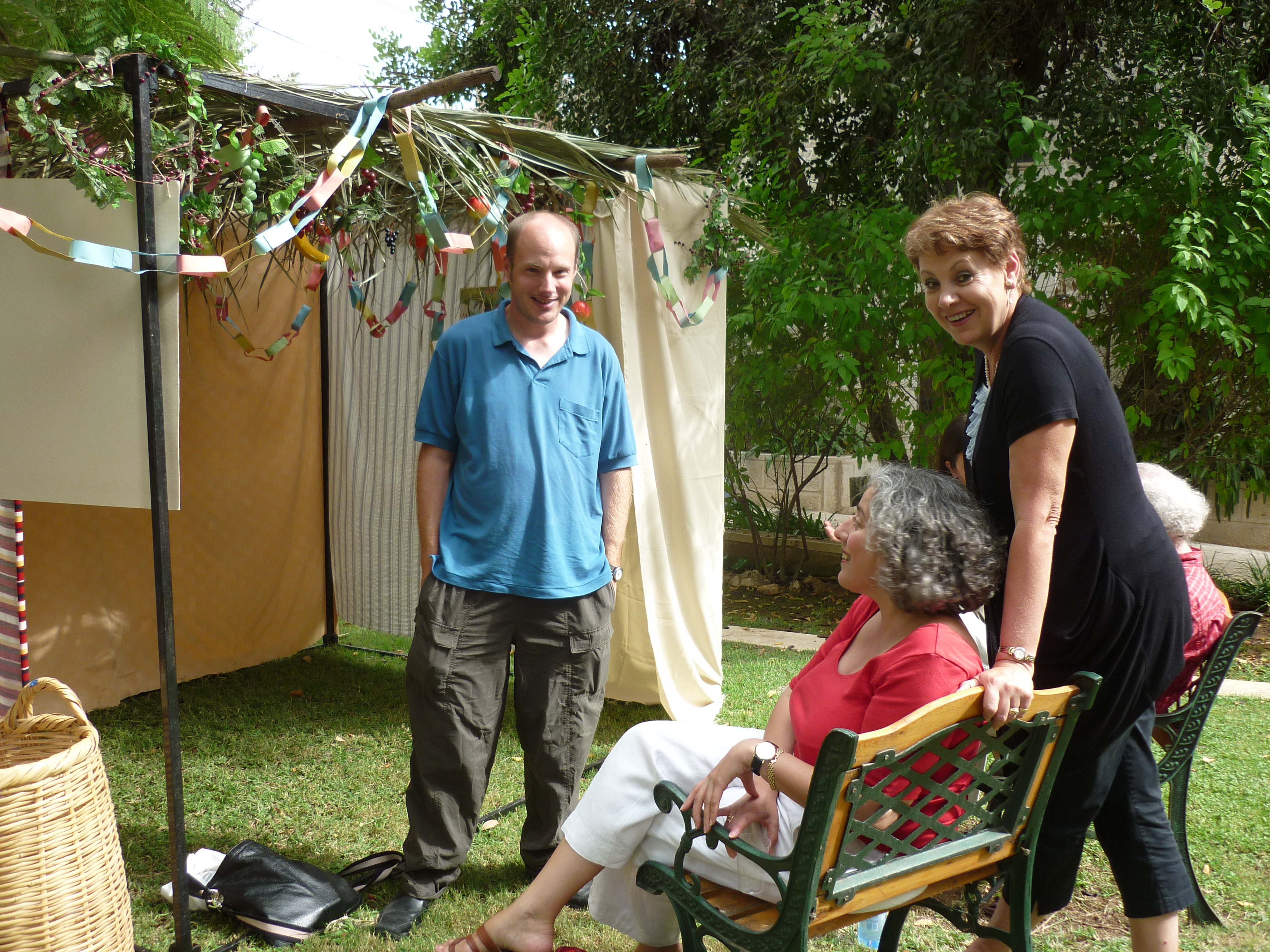
At work we had a birthday lunch outside with a Sukkah tent.   These temporary structures are popular all over Israel as a place for Jews to eat and sleep in them for this festival.   Sometimes they are tents and some are shed like buildings, they are decorated with palm trees, plastic or real fruit and Christmas-style decorations, kind of all the fun of camping but just outside your house.

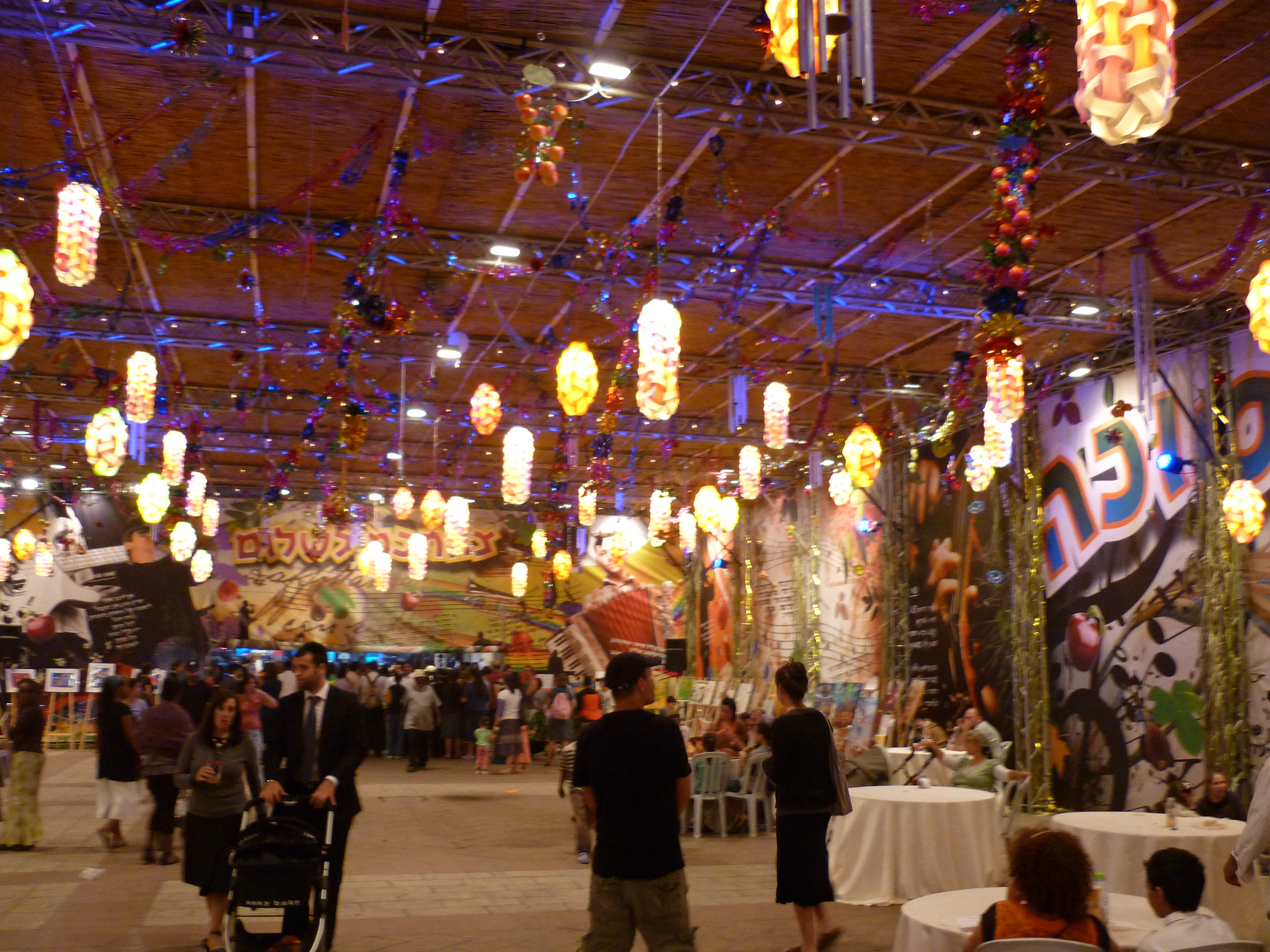
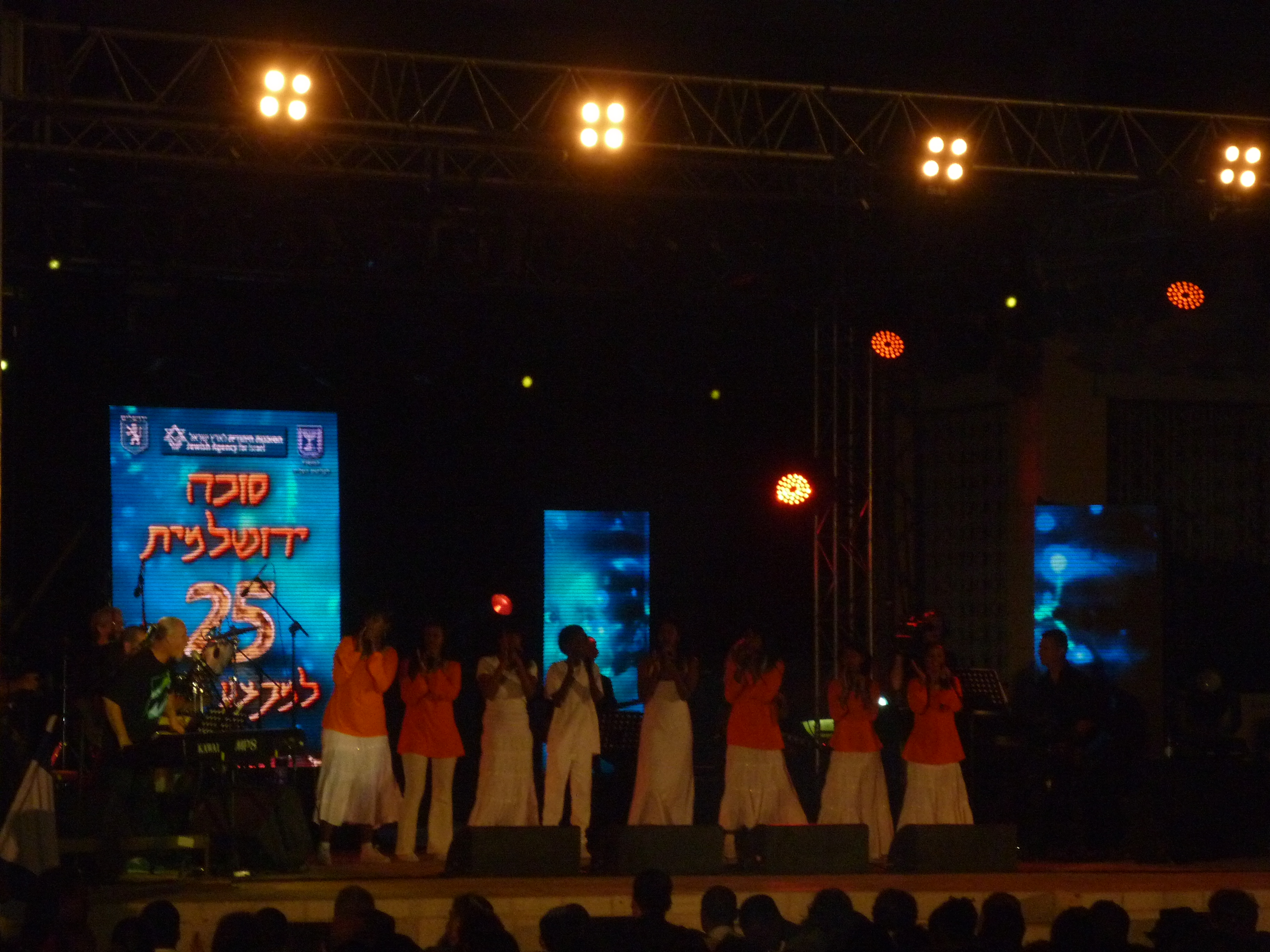
Just off the side of Jaffa Street, there is a huge Sukkah put on by Jerusalem Municipality.   There is local artwork being shown inside, and behind was a stage with a big free concert is on, there was some Ethiopian girls singing in their native Amharic language.   Of course there wasn’t any English commentary to this show, so I don’t know if this was a charity event.

Need software tools for network diagrams

IT stuff – skip below if this is not your thing.

This last week we got another volunteer in the IT department, its great to get some help, and also pool together ideas on we I can make IT support easier and plan for changes and improvements.

One of the projects for the future is re-do some documentation for our network.

The typical software application to do flow charts and diagrams is Microsoft’s Visio in places I have worked before.

Visio is quite expensive though and has a propriety file format, so all members of a team (and clients) need to have Visio to read the file.

I am thinking of what else I could use to do the job.   As well as cost, and there could be some free tools to do the job, there is the need for extreme simplicity, to making designing and altering diagrams easy and be able to hand over this role to future staff who will eventually replacement me.

I would like to ask my fellow IT peers, in systems admin, and those who do web design and programming, what their views are there on this.

When consulting, do you sketch out things on paper, then on chart modeling software of some kind?   Does complex projects need two or more people to work on a model before coding commences?   Or does a sketch of what’s needed get shown to the client, to check hes happy with the solution that is to be built?

I have largely ditched Microsoft’s Word and Excel in favour of Google Documents, as I like being able to get documentation on any computer, inside my network or indeed anywhere in the world with a web connection.   Plus documentation to rebuilt a server is no good, if it was saved on the one that went down due to a failed disk!!   This is an example of a cloud makes perfect sense here.

A lot of web designers are likely to be using Macs, so an app that’s on Mac and Windows, or a web based app that’s transparently usable on any darn OS/browser is good.

Now, if remember correctly Google now do a vector graphics as part of the Google Documents suite.  Having something cloud based is a huge plus, especially if there becomes a problem with a server that contains documentation.

This isn’t about knocking Microsoft or Adobe, but there is a wealth of free and open source apps, so please feel free to tell us what is the best tool for the job, and responses from fellow IT pros on your preference for ways to do this would be great. 🙂